ShareMaster is shaped by your feedback. Tell us what to build next →
Features All features overview
Migration Tools Overview Structure and content OneDrive ↔ SharePoint Content only Structure only Move / Copy Upload from this computer Download to this computer Dropbox to SharePoint Resume and incremental runs
Microsoft Teams Overview Copy a team Move channels Merge teams Inactive teams Ownerless teams Guests and external access Export a team Search everyone's chats
Recycling Bin Overview Browse a site's recycle bin Empty recycle bins in bulk Restore and purge history Deleted teams
Archive Overview Configure the tenant On Demand Archive Restore Archived Files Archive Savings Report Blob Viewer
Optimise Storage Tools Overview Delete all items in a list Delete all files and folders in a library Remove empty folders Remove duplicate files Reduce image sizes Delete sites and subsites
SharePoint Tools Overview Tenant Explorer SharePoint Explorer Easy Settings Fix renamed groups List Explorer Search the Preservation Hold Library
Search & Indexing Overview Search query Item search properties Reindex Crawl log
Replace Overview Replace in SharePoint Replace in local files Find password-protected files Remove PDF passwords
Shared Links Overview Report shared links Report unique permissions Remove a person from sharing links Remove shared links Remove unique permissions
Version History Overview Version trimming Version trimming report Reset file version
Reports Overview Inventory report Folder inventory Site and subsite storage Storage growth Security matrix Teams permissions Pre-migration analysis Compare items Dropbox to Microsoft 365 compare Duplicate file report Empty folder report Image size report Recycle bin report Unused licences Copilot readiness Inactive sites, OneDrives and groups Orphaned users Site settings Audit activity Groups Checked-out files report Report history
Developer Tools Overview Query Builder PnPjs Console Property Bags SPFx Customizers Webhooks Customisation audit
Pricing Services Demos Blog Guides Use cases Compare Tools Alerts FAQ Contact
Migration Tools

SharePoint tenant to tenant migration without the PowerShell

Copy whole sites, or just the lists and libraries you pick, from one Microsoft 365 tenant into another. Version history, the original dates and authors, and permissions matched to the people in the new tenant. Run it again before cut-over to catch what changed.
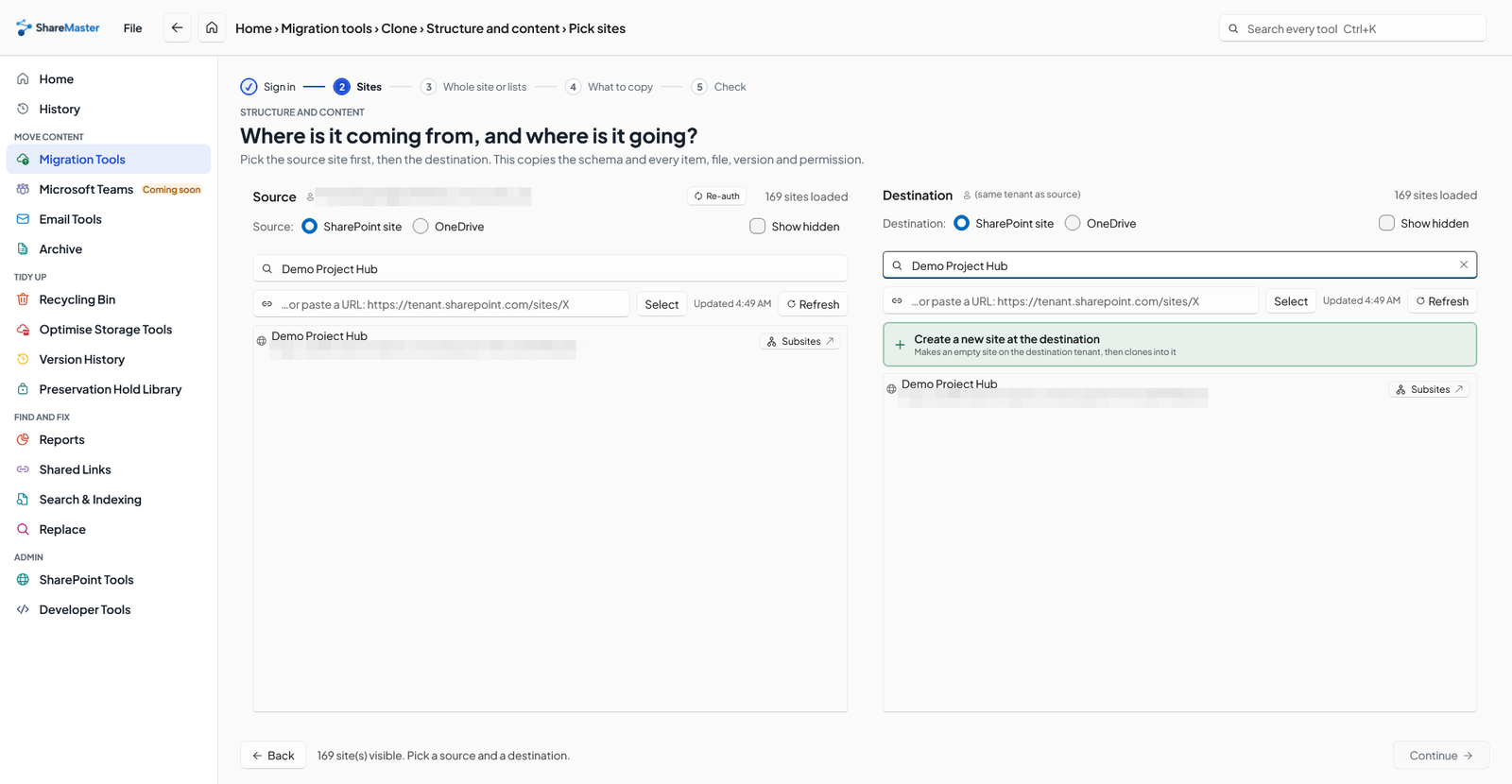
ShareMaster's clone site picker with source and destination panes, SharePoint and OneDrive choices, and a new destination site option

How do I migrate SharePoint from one tenant to another?

Microsoft's own cross-tenant SharePoint migration is a paid add-on for Enterprise Agreement customers, driven by PowerShell on both tenants, and it only moves a site into a destination that does not exist yet. Microsoft's free SharePoint Migration Tool does not go tenant to tenant at all. Everyone else uses a migration tool: ShareMaster copies sites, lists and libraries between two tenants through Microsoft's Migration API, keeping versions, Created and Modified dates and authors, and permissions mapped to the destination's people.

Built for mergers, splits and rebrands

What a tenant move needs, and what this does

History intact

Version history, Created and Modified, and Created By and Modified By, re-pointed at the new tenant's accounts.

People mapped

Exact user name and email matches applied for you, the rest picked or skipped in one grid before anything copies.

Existing sites welcome

Merge into a destination that already exists, land as a subsite under it, or let the app create a new site.

Re-run until cut-over

Incremental runs pick up what changed since the last one, and a stopped run resumes where it stopped.

Your options for a SharePoint tenant to tenant migration

Moving SharePoint between tenants usually comes with a business event: an acquisition folding a company into the parent's tenant, a division being sold off, a rebrand onto a new domain, or a consolidation of several tenants into one. Whatever the reason, there are three routes, and which one is open to you depends more on your licensing than on the content.

SharePoint Migration Tool (SPMT) Microsoft cross-tenant migration ShareMaster
Tenant to tenantNo: on-premises and file shares into Microsoft 365YesYes
Who can buy itFreeEnterprise Agreement customers, as a paid add-onAnyone, $900 USD a year
How you run itDesktop appPowerShell on both tenants, with a trust set up between themDesktop app, signed in to each tenant
Destination siteNot applicableMust not already existNew, existing (merge), or a new subsite
Part of a siteNot applicableWhole site onlyWhole site, or the lists and libraries you pick
Catch up changes laterNot applicableNo: one move, no delta passesIncremental and differential re-runs
User mappingNot applicableA mapping file you prepareAutomatic exact matches, the rest in a grid

Microsoft's facts come from its cross-tenant SharePoint migration documentation. If you hold an Enterprise Agreement and are moving whole sites once, into a clean tenant, Microsoft's route is worth pricing. If any of those conditions do not hold, it is not available to you, and that is the case this page is about. For the full picture of what each tenant needs before a move, see the cross-tenant prerequisites reference.
How it works

  1. Size it first. The pre-migration analysis reads the source and lists what will not survive the move or needs attention: long paths, blocked names, large files, checked-out files, and the workflows, Power Automate flows and Power Apps you will have to rebuild. It changes nothing.
  2. Sign in to both tenants. The source can use your own account; the destination uses either the app, consented once by a Global admin, or a certificate. The account needs site collection administrator rights at both ends.
  3. Pick the source and destination. A whole site or the lists and libraries you tick, and a destination site that exists, a new subsite under it, or a new site the app creates.
  4. Map the people. Exact user name and email matches are filled in. Near matches are suggested for you to check, and the rest you choose from the destination's users or skip.
  5. Copy. Content goes in through Microsoft's Migration API. Every item it skips or has to retry is listed with the reason, and items still missing at the end are sent once more before being reported as failed.
  6. Compare. A shallow compare checks counts and what is missing; a deep compare checks the items and their field values. Both save to Excel.
  7. Catch up and cut over. Before switching users over, an incremental run copies whatever changed in the source since the last run started.
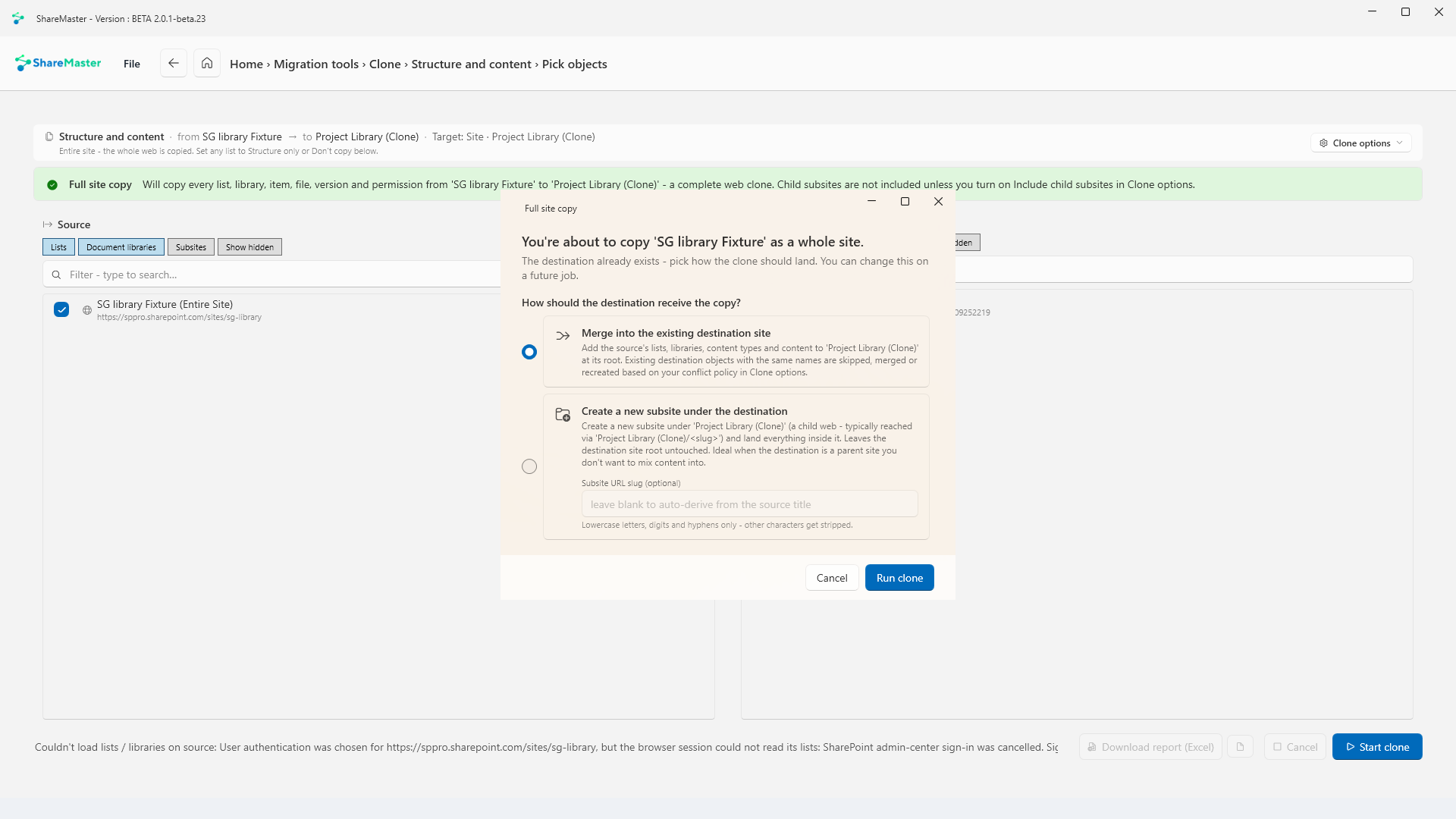
ShareMaster clone check screen asking whether to merge into the existing destination site or create a new subsite under it
When the destination site already exists: merge into it, or create a new subsite underneath.

What comes across

  • Lists and libraries with their content types, columns, views and folder structure, and every item, file and version.
  • Created, Modified, Created By and Modified By, with the people mapped to destination accounts.
  • Permissions, including permission levels and SharePoint groups, recreated on the destination with their mapped members.
  • Site columns, managed metadata term sets (created in the destination's term store where they are missing), and lookup columns with the lists they point at.
  • Site pages, navigation and the site's theme. Subsites too, when you tick Include child subsites.
  • OneDrive content, in either direction: a person's OneDrive can be the source or the destination.

What does not, and what to do about it

  • Workflows, flows and Power Apps. SharePoint 2010 and 2013 workflows, Power Automate flows and Power Apps stay behind and need rebuilding in the new tenant. The pre-migration analysis lists them so nothing is a surprise.
  • Alerts are listed in the report for people to set up again.
  • Files over 2 GB bring their current version only.
  • People with no account in the destination. Anyone you skip gets no permissions there. Create their accounts before the run and they map normally.
  • Deletions after the first run. Incremental runs add and update; they never delete at the destination.
  • Microsoft Teams. A team is more than its site. Copy a team moves the team, its channels, members, files and posts into the other tenant.
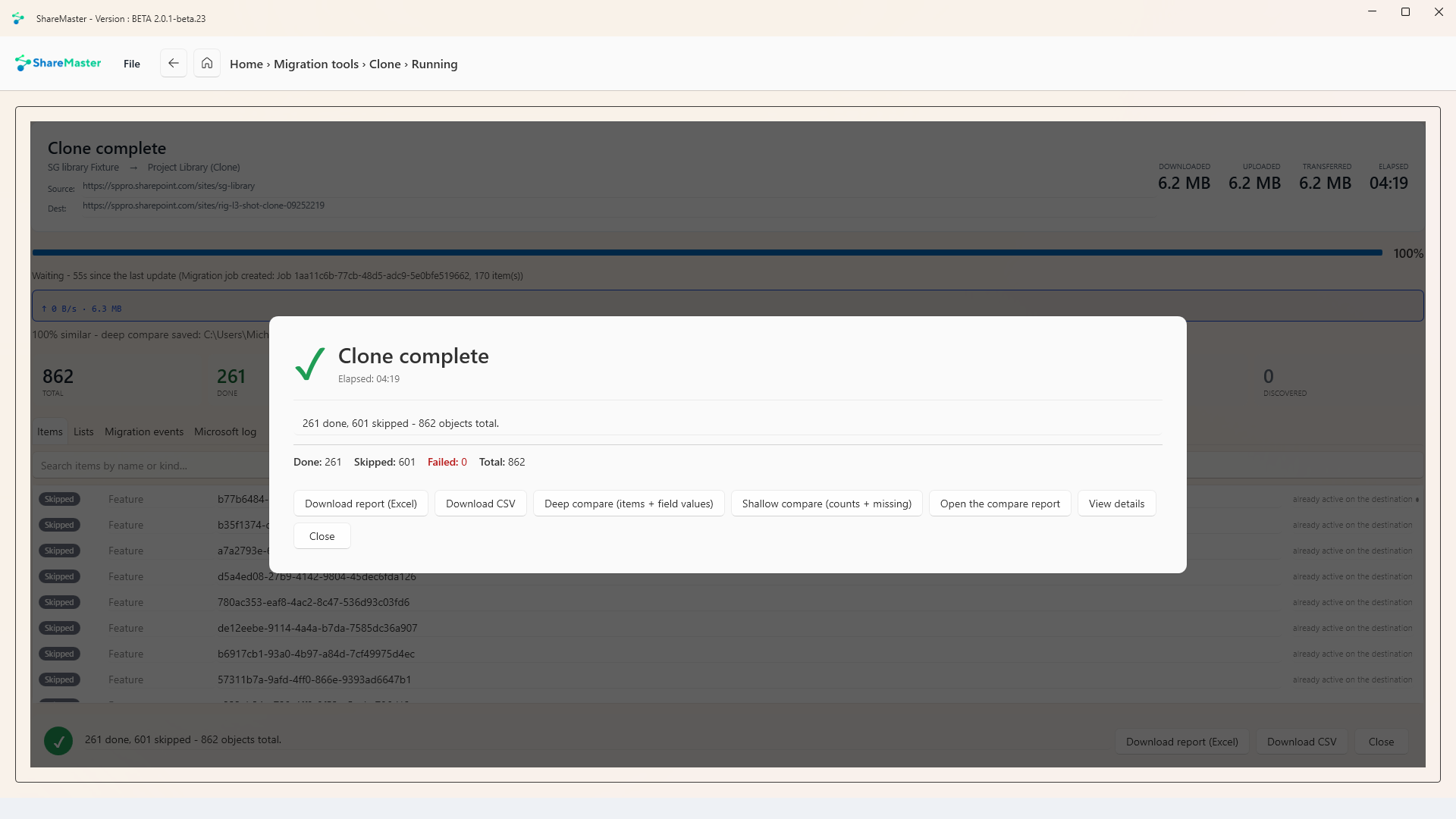
ShareMaster clone complete dialog with done, skipped and failed counts and buttons for a deep or shallow compare and the Excel report
The end of a clone: done, skipped and failed counts, the Excel report, and the deep and shallow compare.

Before you start

Three things decide how smoothly a tenant move goes, and none of them is the tool. Create the destination users first, so authorship and permissions have someone to map to. Check the destination's storage, because version history is usually what fills it; the version cap in Settings is there if you need it. And plan for time: a large site takes hours through the Migration API, so run the bulk early and keep the incremental pass for cut-over weekend.

Copying inside one tenant instead? To duplicate a whole site the same clone works with a single sign-in, and for files between libraries Move / Copy uses SharePoint's own server-side copy. Still choosing a tool in general? The SharePoint migration tool overview compares every option, including Microsoft's free ones.

FAQ

SharePoint tenant to tenant migration questions

Do I need Microsoft's cross-tenant migration licence to use ShareMaster?
No. ShareMaster drives the standard SharePoint Migration API from a Windows desktop app, signed in to each tenant, so there is no trust relationship to set up between the tenants and no Enterprise Agreement add-on to buy. You need a site collection administrator at both ends, and for the destination either a Global admin's consent to the app or a certificate you set up once.
How are users and permissions matched between the two tenants?
Before any content moves, every source user and group is matched against the destination. Exact matches on user name, then on email address, are applied for you; near matches on the name are offered as suggestions for you to accept or change, and anyone else you pick from the destination's people or skip. SharePoint groups are recreated on the destination site with their mapped members. A person you skip gets no permissions at the destination.
Are version history, dates and authors kept?
Yes, by default. Every version of every file comes across with its Created and Modified dates and the people who created and changed it, mapped to the destination's accounts. You can cap the number of versions in Settings to save destination storage. Files larger than 2 GB are the one exception: they bring their current version only.
Can I migrate into a site that already exists?
Yes. When the destination site exists, you choose to merge the source into it, adding its lists, libraries, content types and content and handling same-named objects by your conflict setting, or to create a new subsite underneath it. ShareMaster can also create a new modern team site as the destination.
Can I run it again to pick up changes before cut-over?
Yes. An incremental run copies what changed in the source after the previous run started, and a differential run fills in lists where anything is missing at the destination. Neither one deletes: an item removed from the source after the first run stays at the destination until you remove it.
What does it not migrate?
SharePoint 2010 and 2013 workflows, Power Automate flows and Power Apps, which must be rebuilt in the destination tenant; the pre-migration analysis finds them for you first. Alerts are listed rather than copied. Microsoft Teams teams are a separate tool: Copy a team copies the team, its channels, members, files and, if you want them, posts.
Does it change anything in the source tenant?
No. The source is only read, and nothing in it is deleted, so users can carry on working until you cut over and run an incremental pass.
What does it cost, and can I test it first?
Tenant to tenant migration is in Clone Master: $900 USD for one year or $1,300 for two. The 14-day trial reaches every clone, but deliberately leaves out about one file in ten and lists each one, so a trial run is a rehearsal rather than the real move. Folders, lists and settings all copy on the trial.

Rehearse the move on your own tenants

Start a 14-day free trial, no credit card. Run the pre-migration analysis and a trial clone of one site, then decide.

Last updated