Migration Tools
Move content into SharePoint: clone between sites and tenants, run a fast Move or Copy inside one tenant, upload from this computer or download to it, and bring Dropbox across.
9 tools

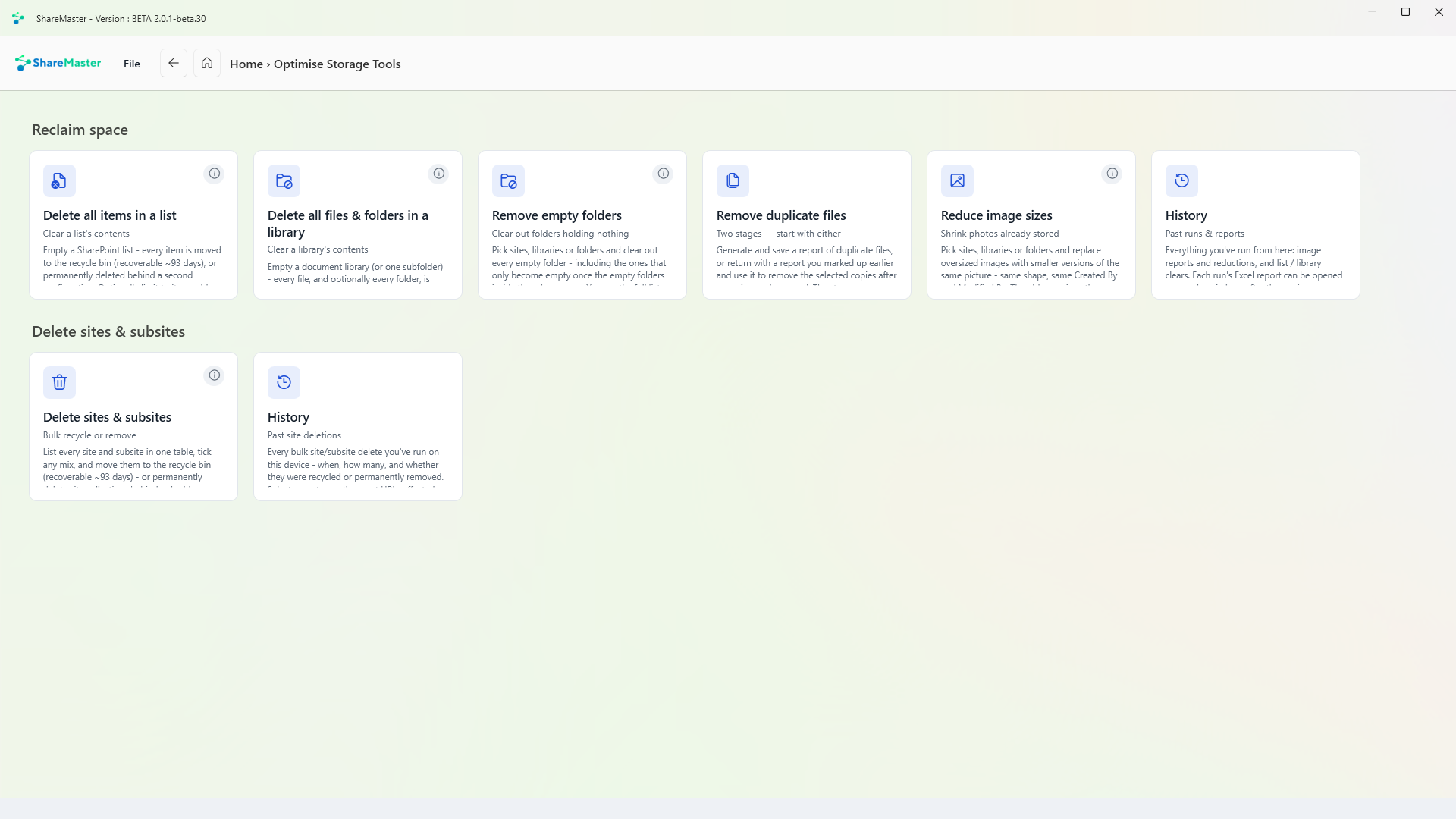
Clear a list's contents
Empties a SharePoint list. Every item goes to the recycle bin, where it can be recovered for about 93 days, or is permanently deleted behind a second confirmation. You can limit it to items older than a date. A preview always runs first, and the list itself is kept.
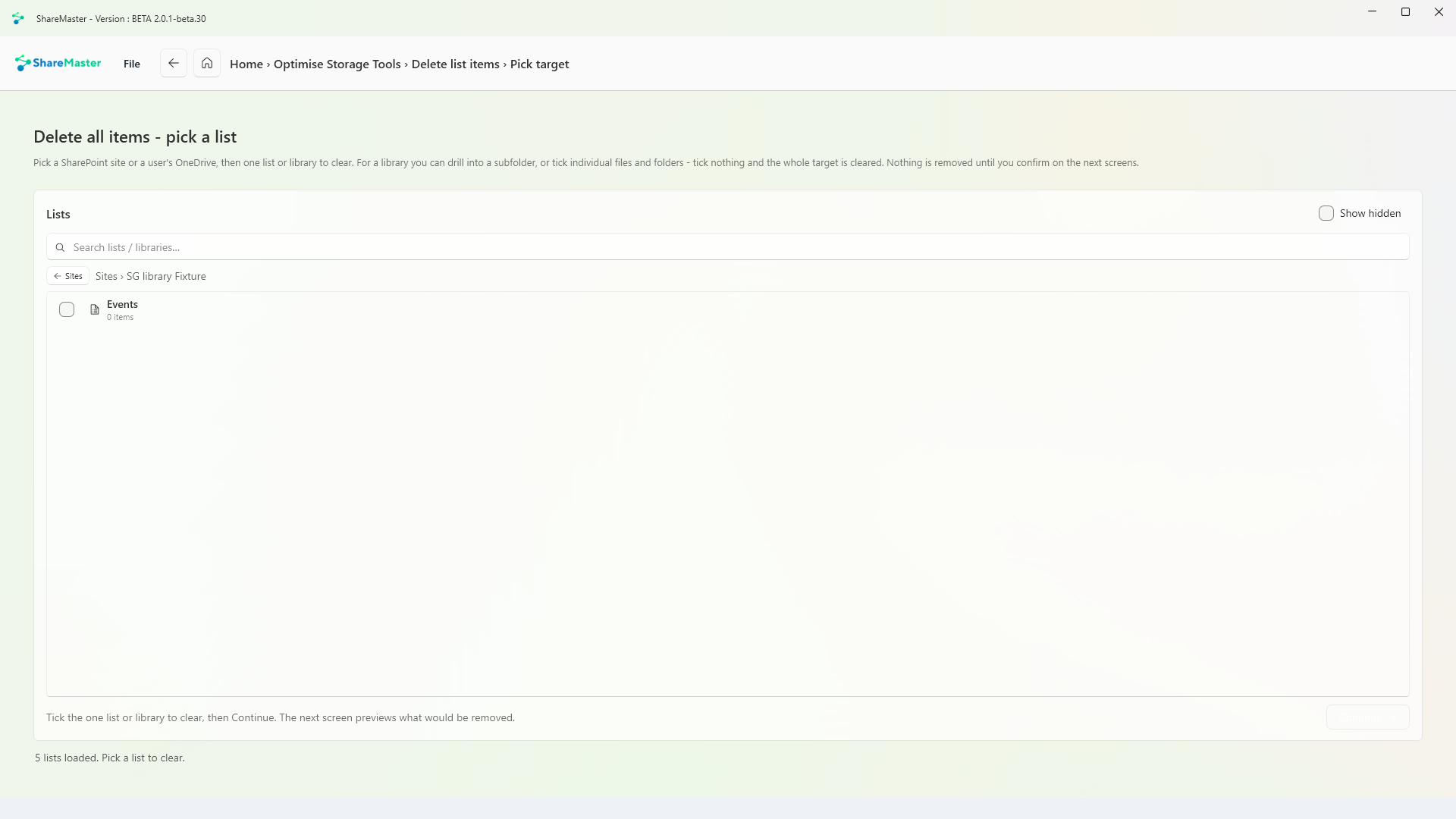
Clear a library's contents
Empties a document library, or one subfolder of it. Every file, and if you choose every folder, goes to the recycle bin or is permanently deleted behind a second confirmation. You can limit it to items older than a date. A preview always runs first, and the library itself is kept.
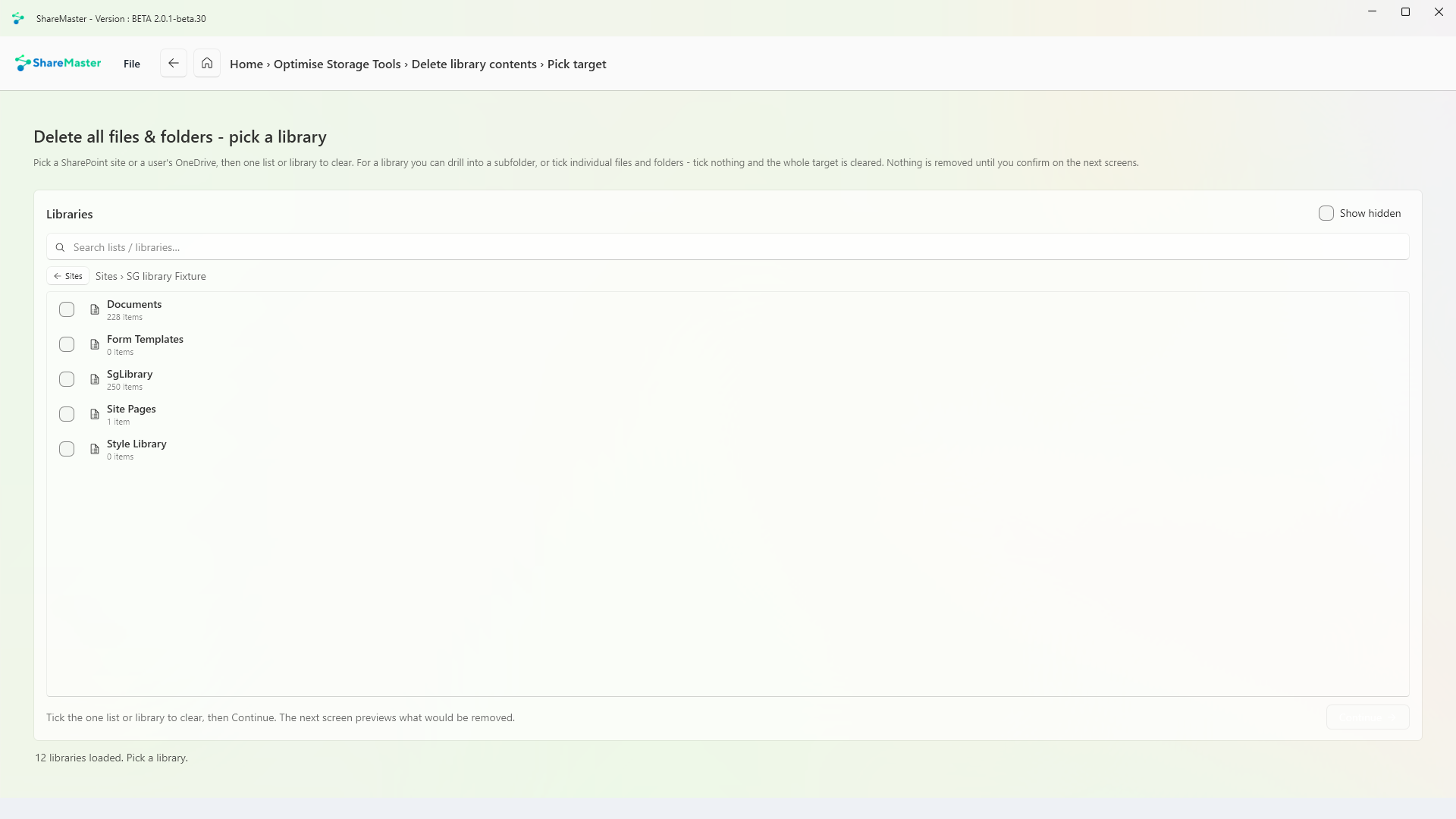
Clear out folders holding nothing
Pick sites, libraries or folders and clear out every empty folder, including the ones that only become empty once the empty folders inside them have gone. You see the full list and approve it before anything moves, and you can keep folders modified after a date.
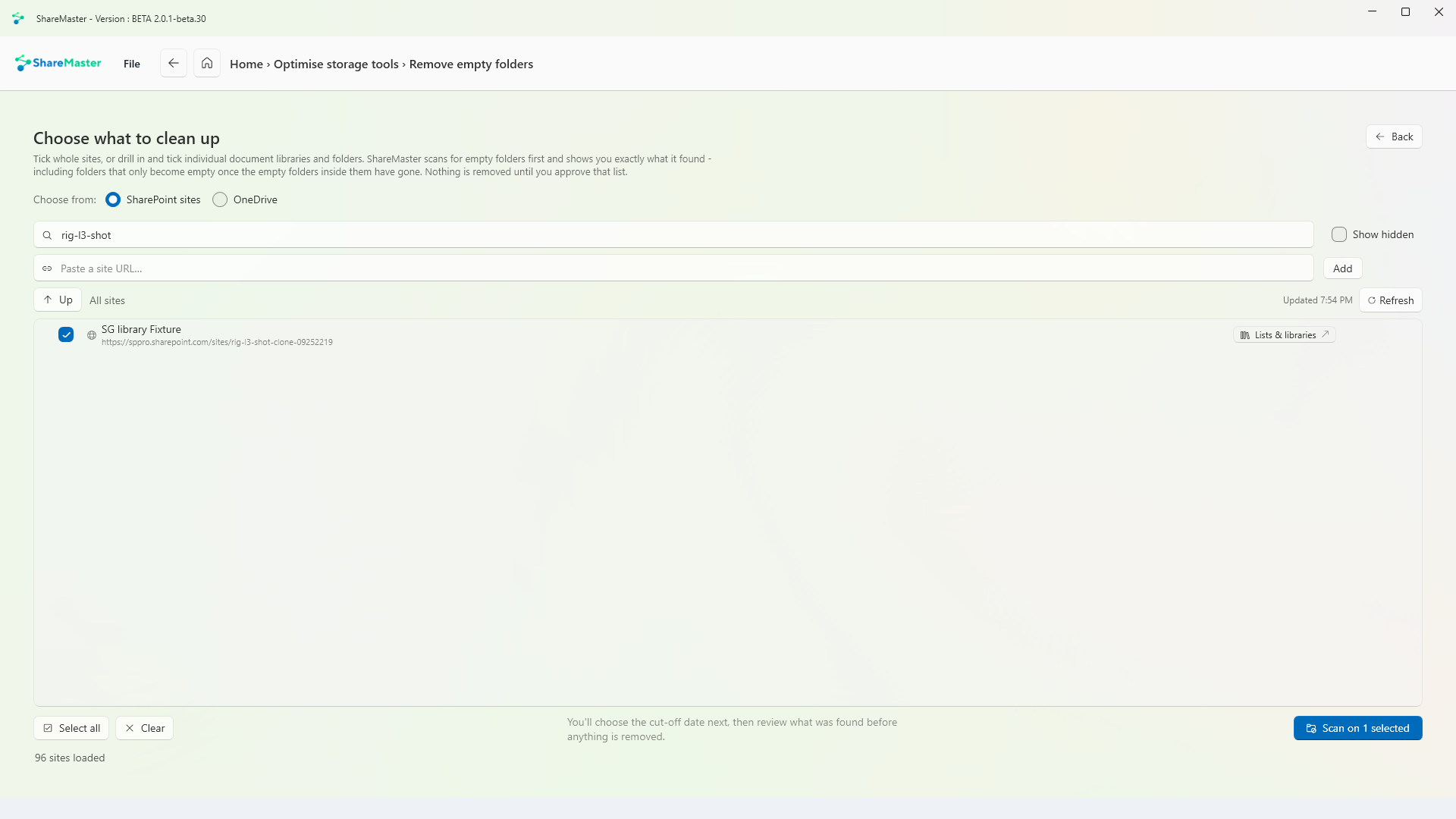
Two stages, start with either
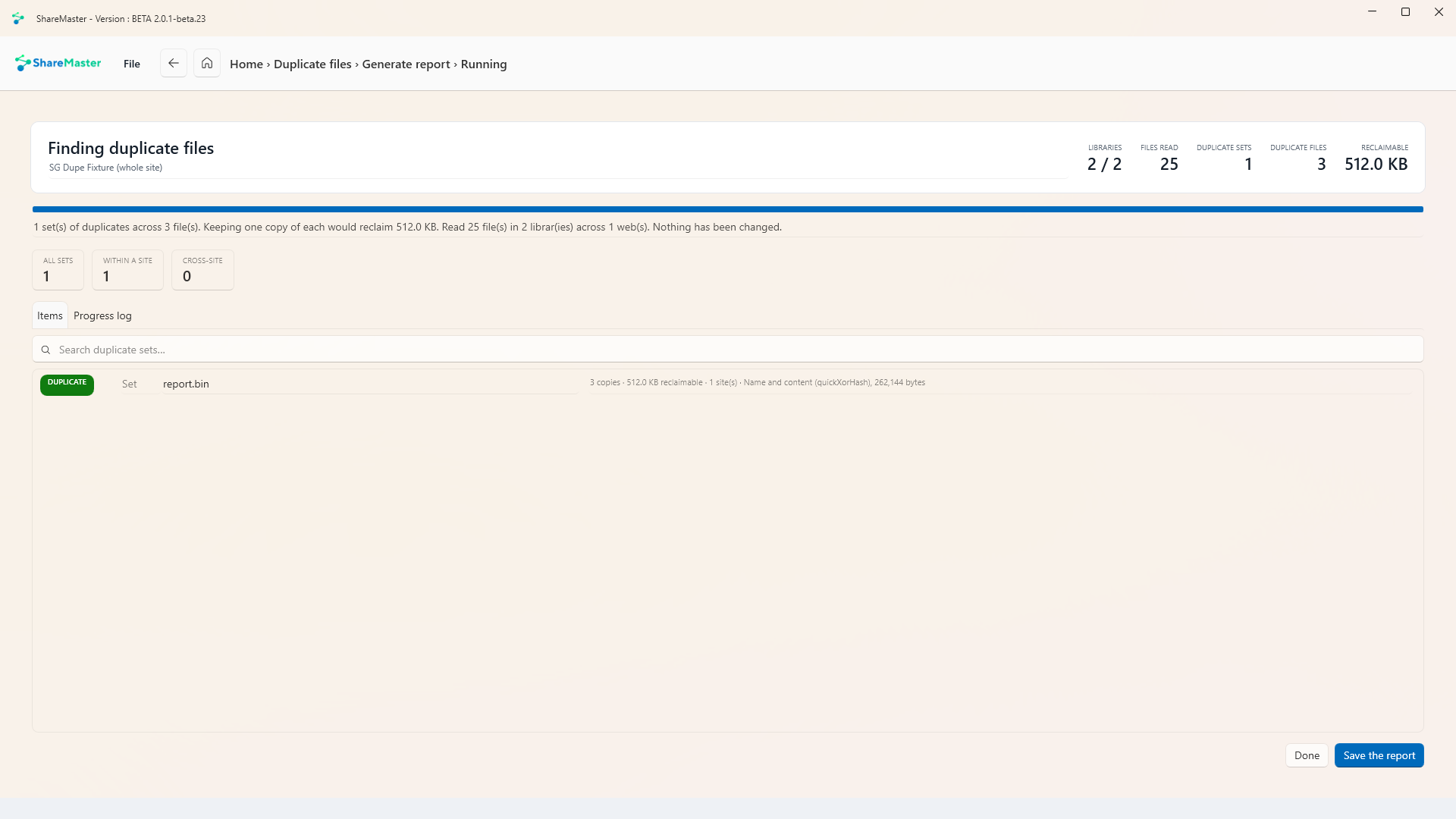
First generate a report of duplicate files and save it. Mark the copies you want gone, then come back with that report and remove them after a preview and your approval. The stages are independent: stop after the report, or skip straight to removal with a report you saved earlier.
Shrink photos already stored
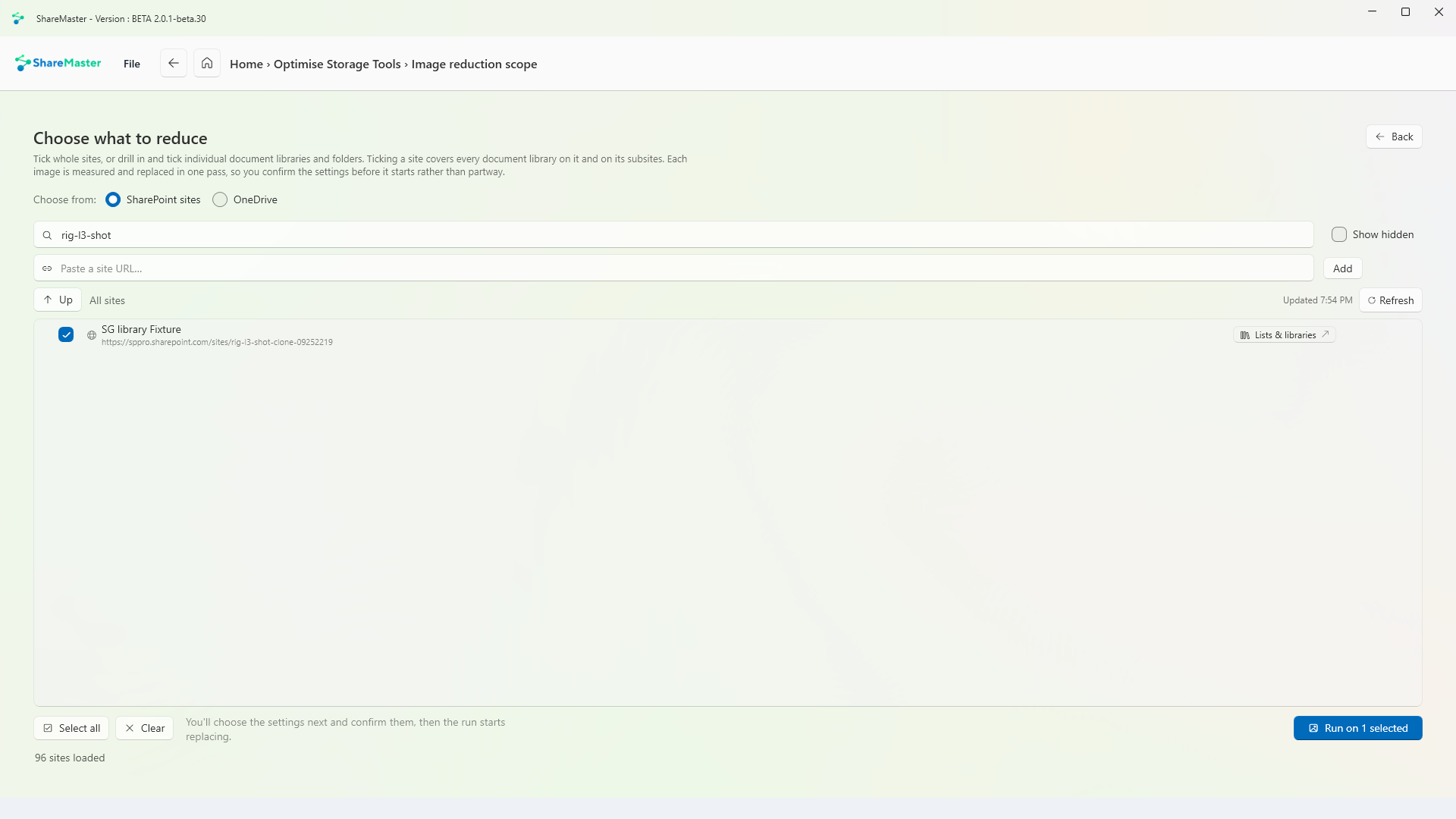
Pick sites, libraries or folders and replace oversized images with smaller versions of the same picture: same shape, same Created By and Modified By. The older versions they replace are permanently deleted, so the space is freed at once and cannot be recovered. You see what it would save, and approve it, before anything is replaced.
Bulk recycle or remove
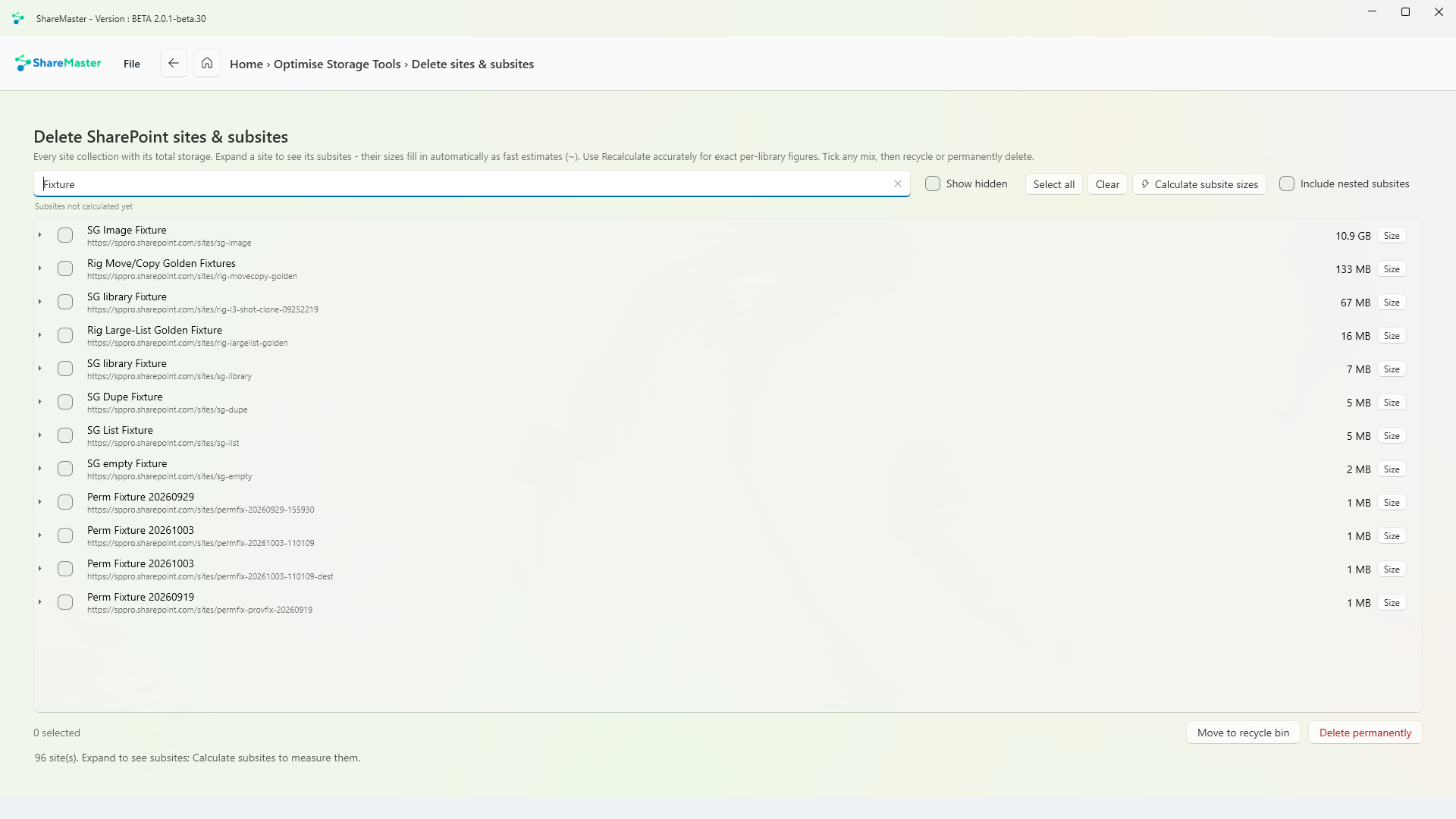
Lists every site and subsite in one table. Tick any mix and move them to the recycle bin, recoverable for about 93 days, or permanently delete site collections behind a double confirmation. Sizes are calculated on demand and remembered.
These tiles appear in the Optimise Storage Tools menu too. Each is written up on its home page.
Move content into SharePoint: clone between sites and tenants, run a fast Move or Copy inside one tenant, upload from this computer or download to it, and bring Dropbox across.
9 tools
Browse, search, restore and purge SharePoint recycle bins, first and second stage, with a record of everything recovered or deleted.
3 tools
Move files nobody opens out of SharePoint into Azure storage you own, and leave a placeholder in the library that still opens.
5 tools
Work with SharePoint directly: browse sites, lists and files, change the settings people usually need PowerShell for, manage list views and versioning, and search the Preservation Hold Library.
5 tools
Find and rewrite text across documents, metadata and list items, in SharePoint or in a folder on this PC, with a preview before anything changes.
3 tools
Find every sharing link and every item with unique permissions across the sites you choose. Export it to Excel, or revoke links and reset permissions in bulk.
5 tools
Trim version history to win back storage, report what trimming would save before you commit, and reset a file's versions to a chosen point.
3 tools
Read-only Excel reports for planning a migration, finding where storage has gone and auditing who can see what. Nothing in this menu changes SharePoint, and every report is kept in History.
14 tools
14-day free trial. No credit card. ShareMaster runs on your own Windows PC.