
Dates and people
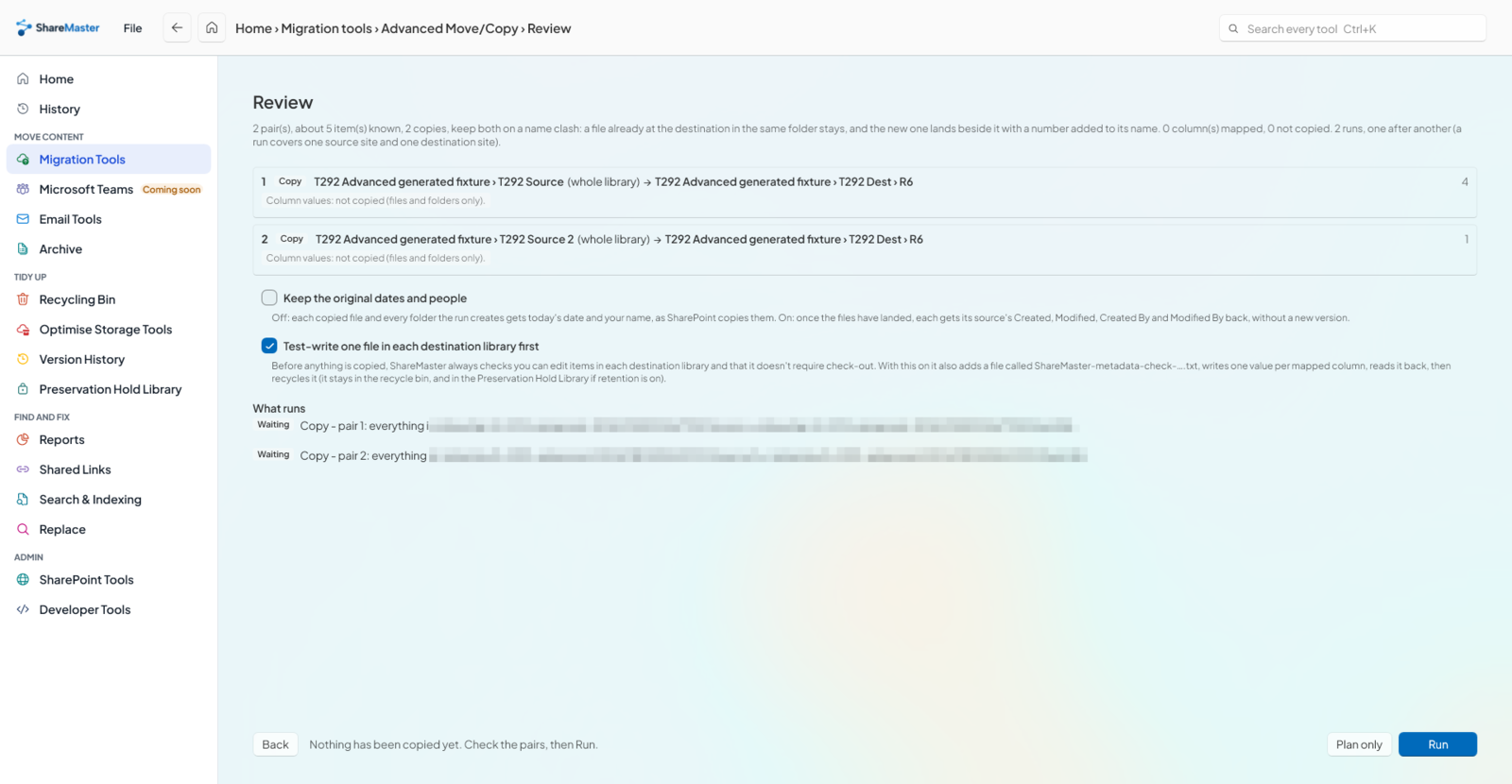
Tick Keep the original dates and people and each copied file gets the source's Created, Modified, Created By and Modified By back, with no extra version.
Move or copy documents from one SharePoint site or library to another and keep what made them useful: who created them and when, who changed them last, and the values in their columns, even when the destination calls those columns something else.
Does copying a SharePoint file keep its metadata?
Only partly. SharePoint's Copy to brings the latest version and the values of columns the destination also has; the file itself arrives as a new item, dated the day you copied it and credited to you. Move to keeps the version history. ShareMaster's Move / Copy can put the original Created and Modified dates and people back on every copied file, and Advanced Move/Copy fills differently named destination columns from the source columns you choose.
Tick Keep the original dates and people and each copied file gets the source's Created, Modified, Created By and Modified By back, with no extra version.
Same-named columns can be copied by Move / Copy. Advanced Move/Copy lets you say which source column fills which destination column.
Re-pointed at the matching item in the destination's lookup list. Anything without exactly one match is cleared and named.
A move keeps the full history. A copy takes the latest version, as SharePoint's own copy does.
A SharePoint file is two things: the document, and the list item it sits on. The item is where the dates, the people and every column value live. Copying the document is easy; SharePoint's Copy to, OneDrive sync, a download and re-upload, and most scripts all manage it. What they create at the other end, though, is a brand new item, so the history of who did what is replaced by today's date and whoever ran the copy.
Microsoft documents the rest of the picture in its move and copy article: Copy to takes only the latest version, Move to keeps the version history, and a column value survives only if the destination library has a column to put it in. Across sites, a single move or copy is capped at 100 GB and 30,000 files, per the SharePoint Online limits.
That is fine for a handful of files. It stops being fine when an audit, a records schedule or a search filter depends on knowing who wrote a document and when, or when the destination library was built by someone else with its own column names.
Move / Copy uses SharePoint's own server-side copy and move, so the files never come down to your computer, and then puts back what SharePoint leaves behind.
The hard case is a destination that already exists and was designed differently. Its column is called Client where yours says CustomerName, or Project Code where yours says Job. A straight copy drops those values because there is nowhere with the same name to put them.
Advanced Move/Copy handles it as a list of pairs, each one a source, a destination and a column mapping:
After the files land, only the values that differ are written, without a new version and without touching Modified or Modified By. Every value is backed up first and kept for 90 days, so from Report History you can write the run's values again or put back what was there before.
| SharePoint Copy to | SharePoint Move to | ShareMaster Move / Copy | Advanced Move/Copy | |
|---|---|---|---|---|
| Version history | Latest only | Kept | Move keeps it; copy takes the latest | As Move / Copy |
| Created, Modified and the people | Today's date and your name | Kept | Put back on copies if you tick it | Put back on copies if you tick it |
| Column values | Where the destination has the column | Where the destination has the column | Same internal names, if you turn it on | You choose which column fills which |
| Many locations in one plan | One destination per action | One destination per action | Browse, or a CSV of path pairs | Many pairs, saved as a workbook |
| Check before running | No | A prompt when a column is missing | Pre-move analysis report | Review screen and a test write per library |
| Undo and resume | No | No | Both, from History | Both, plus column values put back |
Lookup columns are the other common casualty. After a copy or move between sites, ShareMaster points each lookup value at the matching item in the destination's lookup list, and clears and lists any value that has no match or more than one.
The pre-move analysis report reads the source and the destination and lists, before anything moves, the files that would fail: paths over SharePoint's 400 character limit once they land, names SharePoint will not accept, empty files, very large files, checked-out files, folders that would pass 5,000 items, and two items that would land in the same place. It changes nothing.
Afterwards, the dates and people option reads every re-stamped file back to confirm the values took, and an optional verify pass checks the run end to end. It is off by default because it is slow on a big run.
Weighing up other products for this job? The metadata migration tools comparison sets out what each kind of tool keeps. For a one-off library copy by hand, the library copy guide walks through it.
Try ShareMaster free for 14 days, no credit card. Run the pre-move analysis on your own libraries first and see what would get in the way.
Last updated