Not connected to SharePoint
What data is collected?
Connect now
Create Report
For larger reports, we recommend the ShareMaster desktop app. It runs the full report without the web preview’s limits on SharePoint items and report rows.
When you connect to SharePoint, your browser reads the site’s visible list and library names. When you send a message, the AI receives the names and types of the checked lists and their columns, along with what you type. Your files and list contents stay in SharePoint. Your draft stays in this tab until you save it in your browser. We record usage to apply limits.
Preview uses the list rows your report needs. ShareMaster processes them in memory to display the result. The rows are never stored or sent to the AI. Use the app to preview on your computer.
Web reports send your list and column names to our servers. If you'd rather nothing left your computer, use the ShareMaster app. Find out more
What data is collected?
Create Report on the web
Your browser connects directly to SharePoint. When you send a message, the checked lists and their column names and types pass through ShareMaster’s servers to the AI designer. If you use Create Report as a guest, ShareMaster processes it for the request without saving it as a conversation. Guest drafts stay in this tab or in this browser if you save them.
Preview uses the list rows your report needs. ShareMaster processes them in memory to display the result. The rows are never stored or sent to the AI. Use the app to preview on your computer.
Create Report in the app
The app previews and runs reports on your computer. It sends list and field names and types to the hosted AI designer. Your ShareMaster account can keep the report definition, its versions, and the SharePoint source details needed to run it again.
Both versions keep AI usage records to apply limits. Saved reports stay in your account until you delete them. When you sign in to ShareMaster, the AI conversation, including the list and field information you sent, is deleted within a day of your last message.
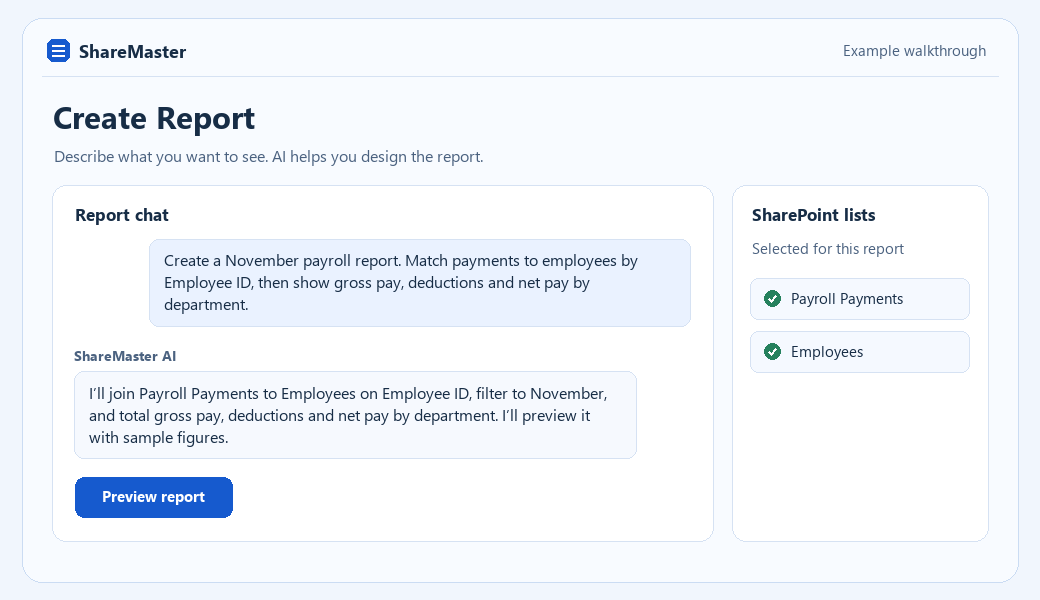
Example: designing a payroll report
Create Custom Report
Add variable
Connect to SharePoint to start designing your report.
Preview report
Save in this browser
Saved in this browser only. Sign in to keep it.
Sign in or create a free account
Free users use Claude Sonnet, paid members use Opus 5.5
· AI fair use policy