Every level
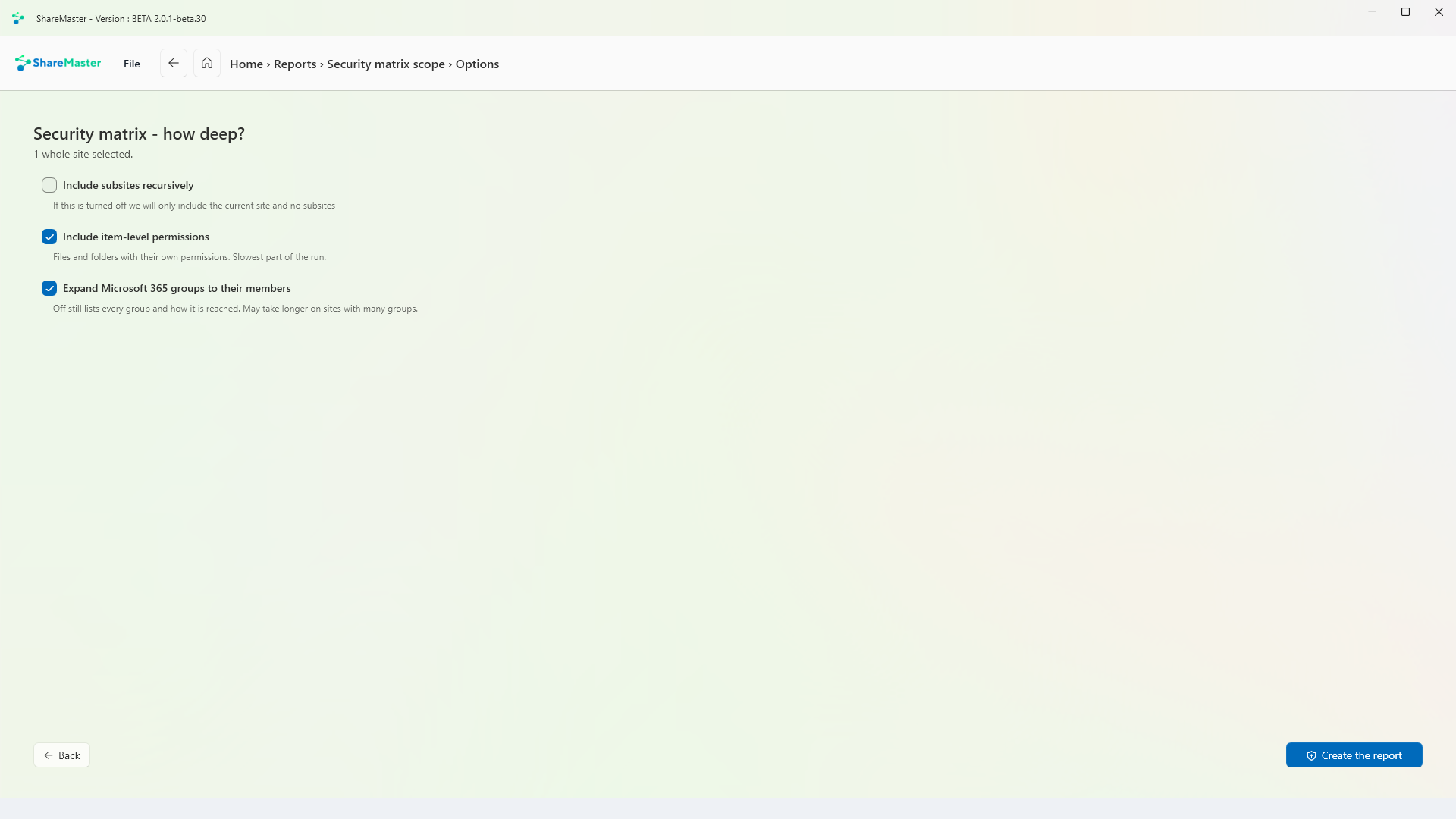
Site collections, sites and subsites, libraries, lists and folders in one run, and individual files and items with their own permissions if you tick it.

One workbook of every permission on the sites, libraries, lists and folders you pick, down to single files if you want it. SharePoint groups, sharing links and Microsoft 365 groups are opened up to the people in them. Read-only, and free on every plan.
Is there a SharePoint permissions report?
Not one that covers everything. SharePoint's Check Permissions answers for one person on one site, on screen, and the site sharing report covers one site's sharing. ShareMaster's Security matrix writes every permission on the site collections, sites, libraries, lists and folders you pick to one Excel workbook, with groups and sharing links expanded to the people in them. It is read-only and free on every plan.
Site collections, sites and subsites, libraries, lists and folders in one run, and individual files and items with their own permissions if you tick it.
SharePoint groups, sharing links and Microsoft 365 groups are expanded to the people in them, so a name in a group is a name in the report.
Teams permissions covers each team's site and the separate site behind every private and shared channel.
The reports change nothing in SharePoint and run on every plan, including the free Community plan. Each one is kept in Report history.
The Security matrix writes one Excel workbook, or a separate file per site or per location if you prefer. It opens with a Summary that states first anything it could not read, so an empty sheet never passes for a clean result, and then lists every list and library with how many of its items carry their own permissions, each linked to its own tab.
"What can this person see?" is the question behind most permissions requests: a leaver, a contractor, an auditor asking about one account. SharePoint's Check Permissions answers it for one site at a time, on screen. Run the Security matrix across the sites in question with group members expanded, filter the workbook by the person's name or email, and you see every place they have access, including the access they only get through a group or a sharing link.
When the report shows access that should not be there, the same app takes it away. These need a paid plan; the free trial and Community can run the reports but not the removals.
For the item level on its own, Report unique permissions and Report shared links are free on every plan too. The SharePoint permissions audit guide walks through a full audit, step by step.
| Option | What it covers | Output |
|---|---|---|
| Check Permissions (site permissions page) | One person on one site | On screen only |
| Site sharing report | One site's sharing, run by a site admin | CSV per site |
| Data access governance reports | Which sites are overshared, for tenants with SharePoint Advanced Management | Report in the SharePoint admin center |
| PnP PowerShell | Anything you script, at any level | Whatever the script writes |
| ShareMaster Security matrix | Sites, libraries, lists, folders and items you pick, groups and links expanded to people | Excel workbook, no script |
PnP PowerShell is free and as flexible as you can make it, which is why scripting-capable admins use it. The cost is the script: the permission model, throttling and paging past the list view threshold all have to be handled and maintained. The guide to exporting SharePoint permissions to Excel covers that route.
Try ShareMaster free for 14 days. The permissions reports are on the free Community plan as well, so you can run them before you decide anything.
Last updated