
Can I search and restore a SharePoint recycle bin without installing anything?
Yes. Sign in at sharemaster.io, open Advanced Recycling Bin in the members area and connect a site or a OneDrive. The bin opens as a table you can search and filter by name, location, kind, author, who deleted it and date, and you restore, move or delete what you pick. It runs in the browser, so it works on a Mac.
Until now, getting more out of a SharePoint recycle bin than the sort-and-scroll page Microsoft gives you meant installing something on a Windows PC. That left out a lot of the people who actually get the "I deleted the wrong folder" call: anyone on a Mac, anyone on a locked-down laptop where installing software needs a ticket, and anyone helping a client from a machine that is not their own. The Advanced Recycling Bin now runs in the sharemaster.io members area. You sign in, connect a site, and work on its bin in a browser tab.
What It Does Better Than the Built-in Bin
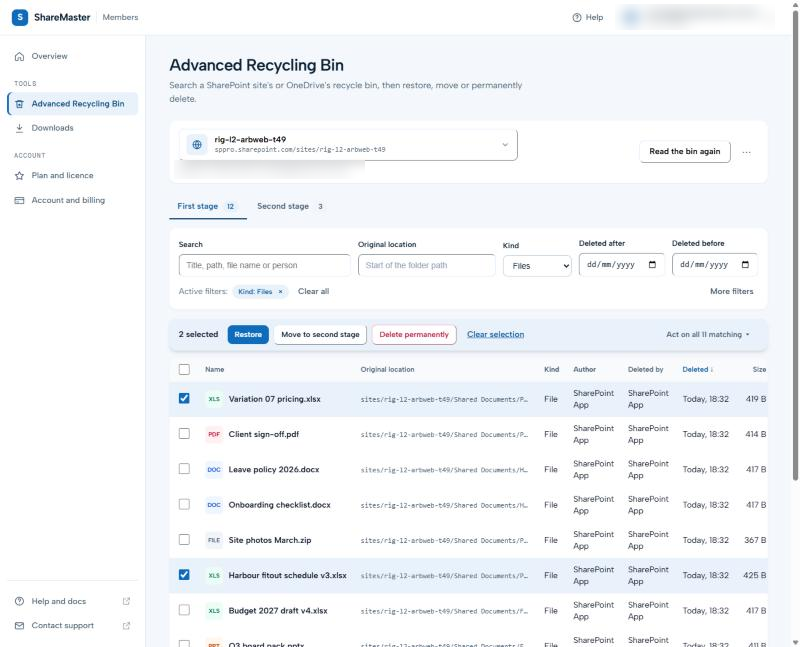
SharePoint's own recycle bin is a list. You can sort a column and you can scroll, and that is roughly it. The Advanced Recycling Bin reads the whole bin first and then lets you query it, which changes what a recovery looks like:
- Search and filter properly. Free text across title, path, file name and person, plus separate filters for title or file name, original location (with suggestions as you type), kind (files, folders, list items, lists, sites), author, who deleted it, and a deleted-after and deleted-before date. Filters combine, and each one shows as a chip you can remove.
- Both stages, one screen. Switch between the first-stage bin and the second-stage site collection bin without leaving the page.
- OneDrive bins too. Switch the source to OneDrive and pick My OneDrive, or connect another person's OneDrive if you are an administrator of it.
- Act on what the filter matched. Tick a handful of items, or act on every item the current filters match, without paging through to select them.
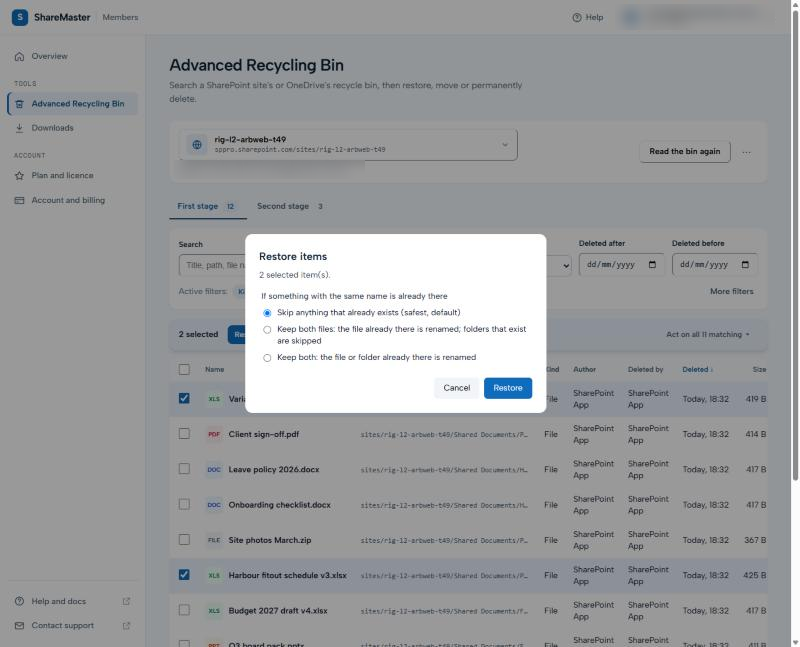
- Restore without overwriting anything. Before a restore runs you choose what happens when something with the same name is already there: skip it (the default), keep both by renaming the file already there, or keep both by renaming the file or folder already there. Folders are put back before the files inside them.
- Move to the second stage, or delete for good. Moving items to the second stage clears them out of the first stage while keeping them recoverable. Permanent delete is there too, behind a confirmation.
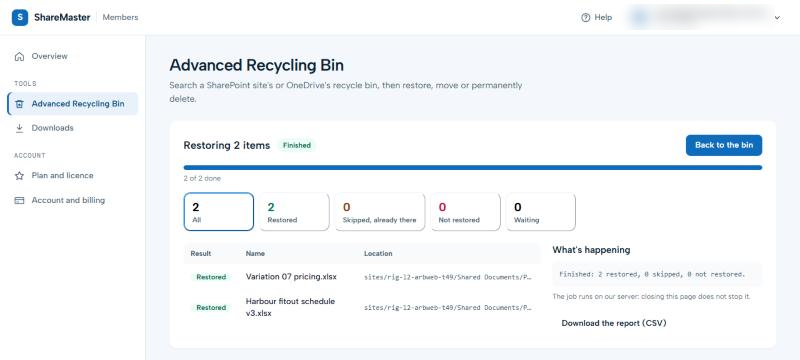
- Jobs run on our server. Once a restore or delete starts, closing the page does not stop it. Its progress screen lets you stop it part way, and when it ends you download a report listing every item and its result.
Nothing to Download, So It Works on a Mac
The ShareMaster desktop app is a Windows program. The web version is a page on sharemaster.io, so the only thing you need is a browser and your ShareMaster sign-in. That makes it the way in for:
- Mac users, who could not run the recycle bin tool at all before.
- Managed PCs where you cannot install software without IT approving it.
- Consultants and helpdesk staff working from a borrowed or shared machine.
- A quick recovery on any computer, when the Windows PC with the app on it is not to hand.
How to Use It
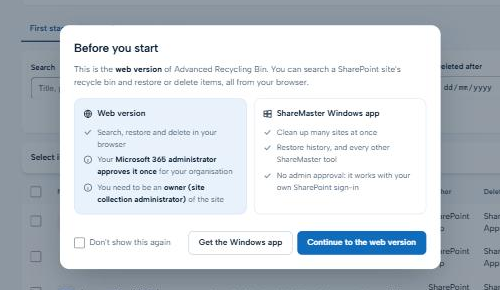
- Open it from the members area. Sign in at sharemaster.io and choose Advanced Recycling Bin in the menu. The first time, a short note explains the two things the web version needs (below). Tick Don't show this again and it stays dismissed on every device you sign in from.
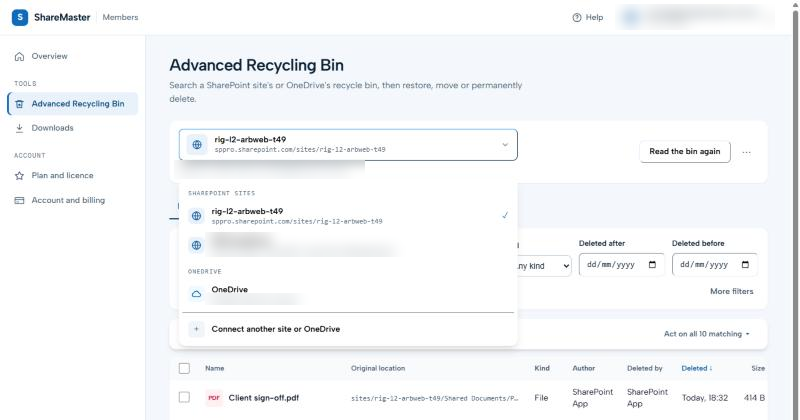
- Connect a site or a OneDrive. Type the SharePoint site address, or switch to OneDrive and choose My OneDrive. Microsoft asks you to sign in with your work account only at this point, not before.
- Pick the stage and filter. Start in the first stage, switch to the second if the item is not there, and narrow the list with the filters until it shows what you are after.
- Restore, move or delete. Tick items or act on everything matched, confirm, and follow the job's progress. The report at the end lists every item and what happened to it.
What You Need
Two requirements, and it is better to know about both before you start than to hit them halfway through a recovery:
- Your Microsoft 365 administrator approves ShareMaster once. A website cannot borrow your SharePoint browser sign-in the way an app on your own PC can, so the web version asks Microsoft for SharePoint access through its own registration. Microsoft only lets an administrator grant that permission. It is a one-time step for the whole organisation: if it has not been done, the tool shows you a link to send to your admin, and if you are the admin you can approve it there and then. The same approval covers OneDrive.
- You need to be a site collection administrator (an owner) of the site whose bin you open. For your own OneDrive you already are. Someone else's OneDrive needs you to be an administrator of it, which in practice usually means a SharePoint administrator.
What ShareMaster for Windows Adds
The web version is the recycle bin tool, on one site or one OneDrive at a time. The Windows app has that same tool built on the same engine, so a restore behaves the same in both, plus:
| In your browser | ShareMaster for Windows | |
|---|---|---|
| Search, filter, restore, move to second stage, delete | Yes | Yes |
| OneDrive recycle bins | Yes | Yes |
| Works on a Mac, nothing to install | Yes | No, Windows only |
| Needs a Microsoft 365 admin to approve it | Yes, once | No, it can use your own SharePoint sign-in |
| Empty the recycle bins of many sites in one pass | No | Yes |
| History of what was restored and purged | A report per job | Yes, a running history |
| Recycle bin storage report | No | Yes |
| Every other ShareMaster tool (migration, permissions, reports, clean-up) | No | Yes |
Both come with the same licence, so you can use whichever suits the machine in front of you. The full list of what the app does with recycle bins is on the recycle bin features page.
Which Plans Include It
The web version follows exactly the same licence rules as the Windows app, and they are checked on our server, not just in the page:
| Plan | What you can do |
|---|---|
| Recycle Master, Archive Master, Clone Master | Everything, with no item limits. |
| Free trial | Connect, search and browse every item. Restoring needs a paid plan. A permanent delete or a move to the second stage acts on the first 5 items of each run. |
| Community (free) | Not included. Opening the tool shows a card with a link to the plans, and nothing asks you to sign in to Microsoft. |
Prices are on the pricing page. If you are new to the recycle bin itself, how to search the SharePoint recycle bin covers what the built-in page can and cannot do, and how to reach the second-stage bin explains who can see it.
Frequently Asked Questions
Does the web Advanced Recycle Bin work on a Mac?
Yes. It is a page in the sharemaster.io members area, so there is nothing to download or install. The ShareMaster desktop app is Windows only, and the web version is how Mac users get the recycle bin tool.
Why does the web version need my Microsoft 365 administrator?
Because a website cannot reuse your SharePoint browser sign-in. It asks Microsoft for SharePoint access through its own app registration, and Microsoft requires an administrator to approve that permission, once for the whole organisation. You also need to be a site collection administrator of the site you open. If your admin cannot approve it, the Windows app works with your own sign-in instead.
Can I restore items on the free trial?
No. The trial searches and browses every item so you can see exactly what is in the bin, but restoring needs a paid plan. A permanent delete or a move to the second stage acts on the first 5 items of each run. Recycle Master, Archive Master and Clone Master have no limits.
Can it search every site's recycle bin at once?
No. It works on one site or one OneDrive at a time, like SharePoint itself. Use Connect another site or OneDrive to move to the next one.