
You went to Site contents, chose Delete on an old document library, confirmed, and SharePoint came back with this:
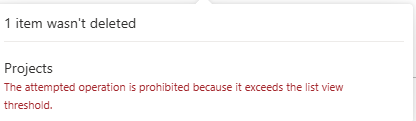
The attempted operation is prohibited because it exceeds the list view threshold.
The library is still there, with every file in it. Nothing you can click in the browser will change that while the library is that big. The way through is to empty it first and delete the empty shell afterwards.
Why a library can be too big to delete
SharePoint Online caps how many items one database operation may process at a time. That cap is the list view threshold, and Microsoft sets it at 5,000. Deleting a library is a single operation over everything inside it, so once a library holds more than the threshold allows, the request is refused and you get the notification above. The "1 item" in the message is the library itself, not a file.
Two things people try first, and why neither helps:
- Raising the threshold. Not possible in SharePoint Online. Microsoft documents it as fixed so everyone sharing the service keeps fast queries.
- Waiting for the daily time window. That is an off-peak override an administrator configures in SharePoint Server, on-premises. Microsoft 365 has no equivalent.
Selecting everything in the library view and pressing Delete does not get far either. The browser only selects what it has loaded, so on a library with tens of thousands of documents you are back to deleting a few hundred at a time, for days.
The same rule bites other tools. The PnP PowerShell Remove-PnPList cmdlet hits the identical error on a library over the threshold, because it asks SharePoint for exactly the same thing the Delete button does.
Empty it with ShareMaster Bulk Delete, then delete the library
ShareMaster's Space Master includes Bulk Delete File & Items. It reads the library 2,000 items per page and removes each file and folder with its own request, so no single operation ever comes near the threshold. When the library is empty, the normal Delete in Site contents works.
- Open ShareMaster, go to Optimize Storage (Space Master) and choose Bulk Delete File & Items.
- Connect to the site and pick the library you want gone.
- Leave both date boxes (Exclude files and items created after and Exclude files and items modified after) empty. You want everything.
- Tick Include folder removal as well. Without it, the files go but the folder tree stays behind, and that can still be enough items to keep the library over the threshold.
- Leave Send to recycling bin ticked. If the wrong library was picked you can still restore from the bin. Untick it only when you are certain and want the items purged straight away.
- Start the run and let it work. Each removed item shows in the run log, and anything SharePoint refuses, such as a file someone has checked out, is listed as an error with the reason.
- When it finishes, run it once more. It reads whatever is still in the library, so a second pass mops up the stragglers.
- Go to Site contents, open the menu on the library and choose Delete. It goes this time.
Expect it to take 24 hours or more. Run it over the weekend.
This is the part to plan for.
Because ShareMaster deletes files and folders individually instead of in one sweep, the time grows with the item count. Folders are removed one call at a time so that a folder already removed along with its parent does not stop the run. SharePoint also slows down any account that sends a lot of requests, and the tool waits out that throttling rather than failing. On a library with hundreds of thousands of documents, 24 hours or longer is normal.
So start it on Friday afternoon and let it run through the weekend. A few practical points:
- Use a machine that will stay on. Turn off sleep in the Windows power settings for the duration, or the run pauses when the PC does.
- Fewer people are working in the site, so you are less likely to hit files that are open or checked out.
- If the run does stop, start it again. It picks up what is left in the library rather than starting from a full count.
Then get the storage back
With Send to recycling bin ticked, every file lands in the site's recycle bin and still counts against your storage quota. The space is not returned until the first-stage and second-stage bins are both cleared, or until the items age out after 93 days. Once you are sure nothing needs restoring, empty both stages from the site's Recycle bin page, or use Recycle Master to clear the bins of several site collections in one job. The bulk delete files guide walks through both stages.
The script route, if you would rather
The Microsoft 365 PnP community publishes a PowerShell sample built on the same idea: remove the files, remove the folders, then remove the library. It works, but you need PnP PowerShell installed and registered against your tenant, the sample removes files without sending them to the recycle bin, and if the session drops halfway through a long run, the retries and the restart are yours to handle. ShareMaster does the same job with a progress log, a recycle bin safety net and no script to maintain.
Questions people ask about this error
Does the same error appear when deleting a big folder?
The same rule applies to any single operation that has to touch more items than the threshold, so a very large folder can fail the same way. Bulk Delete can target one folder instead of the whole library: navigate into it before starting the run.
I only see "exceeds the list view threshold enforced by the administrator". Is that different?
Same limit, longer wording. The cause is the 5,000 threshold either way, and so is the fix: get the library under it before you delete.
Will emptying the library lose version history?
With the recycle bin option ticked, each file goes to the bin with its versions and can be restored from there until the bin is emptied. Once both stages are cleared, the files and their history are gone for good.
Got a library that is too big for the browser to delete? Start the Bulk Delete on Friday and come back on Monday to an empty library.