
Copying a SharePoint list to another site is straightforward when the list is empty. The moment the list has items, custom views, and column formatting, the options narrow quickly and each method leaves something behind. This guide covers four distinct approaches, what each one preserves, and when to use each.
What copying a SharePoint list actually means
A SharePoint list consists of two independent layers: the schema (column definitions, views, content types, and settings) and the data (items, metadata values, and any attachments). Most native methods copy one layer but not both. A "complete copy" preserves the schema and the data together, with lookup column relationships intact and custom views reproduced.
Understanding this distinction up front saves significant rework. The method you choose determines which of these elements survive the copy:
| What is copied | Export to Excel | Save as Template | PnP PowerShell | Clone Master |
|---|---|---|---|---|
| Column definitions | Partial (flat types only) | Yes | Yes | Yes |
| Item data and metadata values | Yes (flat) | Optional | Yes | Yes |
| Custom views | No | Yes | Yes | Yes |
| Lookup column relationships | No | Schema only | Schema only | Yes (can create and fill the lookup lists) |
| Calculated column formulas | No (static values) | Yes | Yes | Yes |
| Cross-site-collection copy | Yes | Limited | Yes | Yes |
| Cross-tenant copy | Manual re-entry | No | No | Yes |
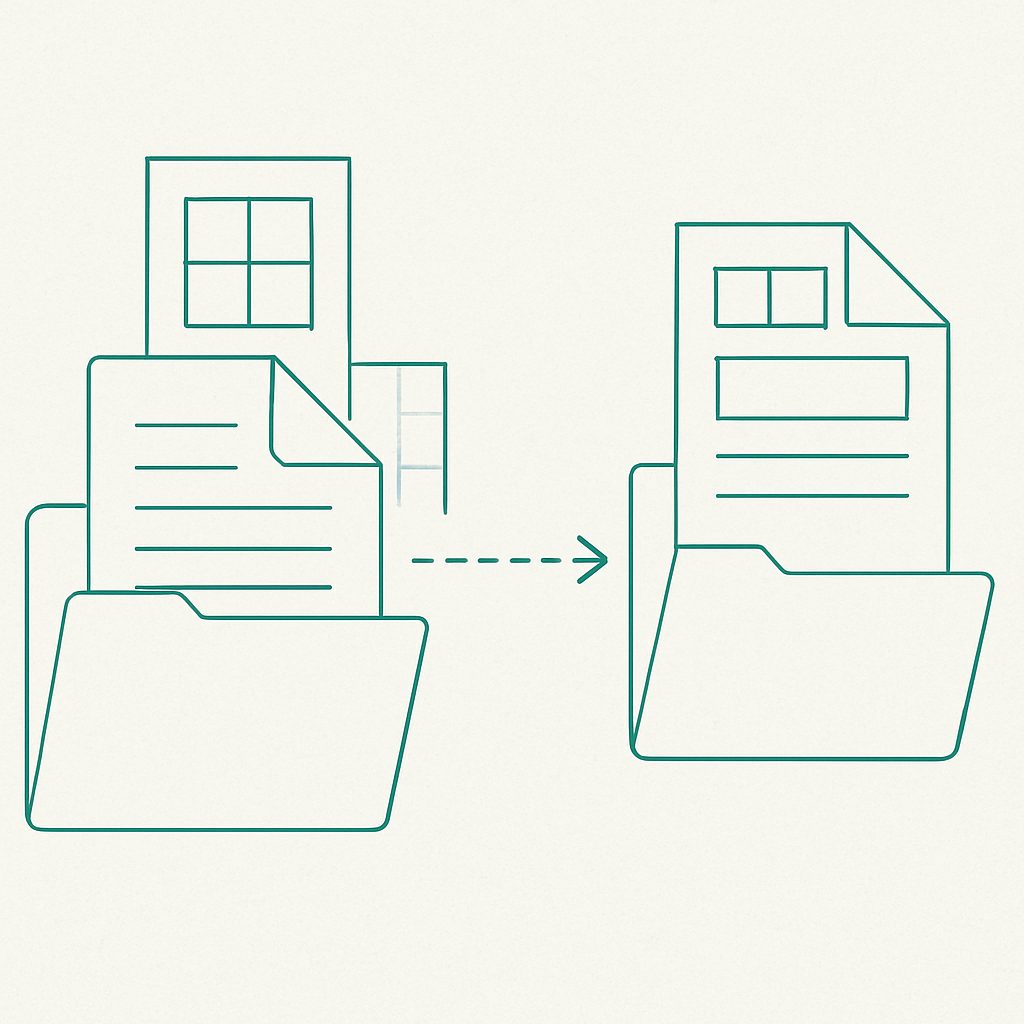
Option 1: Export to Excel and reimport
This is the fastest method for simple flat lists with standard column types (text, numbers, dates, choice fields) and no lookup columns. It works across any two SharePoint sites without admin tools or scripting.
Step 1: Export the source list to Excel
- Open the source list in SharePoint Online
- Click the Export button in the command bar and choose Export to Excel
- SharePoint downloads a
.iqyquery file; open it in Excel to pull the live list data - In Excel, save the resulting table as an
.xlsxfile, or copy the data into a clean spreadsheet and save that
Step 2: Create the destination list
- Navigate to the destination SharePoint site
- Click the gear icon and choose Site contents > New > List
- Select From Excel to import a spreadsheet directly, or create a blank list and add columns manually to match the source schema
Step 3: Import the data
- In the New list from Excel flow, upload your
.xlsxfile - Map each column in the spreadsheet to an appropriate column type in SharePoint
- Click Create to build the list with the imported item data
What this method loses
- Custom views (the destination gets the default view only)
- Column formatting, JSON-rendered columns, and conditional formatting rules
- Original SharePoint item IDs (new IDs are assigned on import)
- Calculated column formulas (imported as static text values from the current result)
- Lookup column relationships (the column becomes a text column in the import)
- Item attachments (not exported to Excel)
Option 2: Save as template
SharePoint allows you to save a list as a template file that includes the list schema and, optionally, the existing items. The template can then be used to create an identical list in another site.
- Go to the source list settings (gear icon > List settings)
- Under Permissions and Management, click Save list as template
- Enter a name and description, then check Include Content if you want items copied
- Click OK; the template is saved to the site's List Template Gallery
- Download the template file from the gallery (Site Settings > List Templates)
- Upload the template to the destination site's List Template Gallery
- In the destination site, create a new list and choose the uploaded template
Why the template method does not always work
- Save list as template only appears when custom scripts are allowed on the site. Microsoft blocks custom scripts by default on modern team and communication sites, and when a SharePoint Administrator allows them, the setting reverts to blocked within 24 hours.
- The Include Content checkbox suits small lists; large lists often fail or produce incomplete copies.
- Deploying to another site collection means downloading the .stp file and uploading it to the destination's List Template Gallery by hand, which needs site owner rights there.
- Lookup columns referencing lists in the source site cannot resolve to anything in the destination until equivalent lists exist there.
This method is most reliable for small lists within the same site collection, on a site where custom scripts are allowed.
Option 3: PnP PowerShell
PnP PowerShell provides the tooling to export a list schema and item data as a provisioning template and apply it to a destination site. An admin with PowerShell access can run:
- Connect to the source site:
Connect-PnPOnline -Url <sourceUrl> -Interactive - Export the list as a provisioning template:
Get-PnPSiteTemplate -Out template.xml -ListsToExtract <ListName> -Handlers Lists - If items are needed, add them to the template:
Add-PnPDataRowsToSiteTemplate -Path template.xml -List <ListName> - Connect to the destination site:
Connect-PnPOnline -Url <destUrl> -Interactive - Apply the template:
Invoke-PnPSiteTemplate -Path template.xml
PnP PowerShell preserves column definitions, calculated columns, and custom views fully. Item data copies over including metadata values; lookup column targets must exist in the destination before the template is applied or the lookup fields will error on import.
The practical limitation is time and scripting investment. Building a reliable extraction-import pipeline requires significant preparation before the first item moves - and runs against large lists can take hours with throttling interruptions to manage along the way. Attachment files require a separate extraction step.
Option 4: Clone Master for a complete SharePoint list copy
ShareMaster's Clone Master handles list copies across sites and site collections as well as full-site migrations. Select the specific list (or include it as part of a complete site migration), set the destination, and Clone Master manages the schema, items, views, and metadata transfer in a single job. You need a Clone Master licence for a real copy: on the 14-day trial, Clone Master deliberately leaves random items out, so a trial run shows you the process but not a complete list.
Key advantages over the other methods:
- No pre-configuration of the destination list required; Clone Master reads the source schema and creates it in the destination
- Custom views are reproduced without manual rebuilding
- Item data and metadata values are copied without flattening lookup or calculated columns, and the Create lookup lists and Fill Lookup Lists options bring the related lists across too
- Works across site collections and across Microsoft 365 tenants
- Re-runnable: a second run can skip items that already exist, or are newer, at the destination instead of copying everything again
For cross-tenant scenarios (moving a list from one Microsoft 365 organisation to another during a merger or MSP client migration), Clone Master is the only method in this guide that supports the transfer without manual data export and re-entry. See the guide to migrating a SharePoint site to another tenant for the broader context of how list migrations fit into a full site move.
Try ShareMaster free for 14 daysWhich method should you use?
| Scenario | Best method |
|---|---|
| Simple flat list, no lookups, under 500 items | Export to Excel |
| Schema-only copy, or small list on a tenant with templates enabled | Save as Template |
| Complex schema, PowerShell-comfortable admin, moderate item count | PnP PowerShell |
| Large list, lookup columns, cross-site-collection, or cross-tenant | Clone Master |
| Document library with files (not just metadata) | Clone Master, or Copy to within one tenant |
Whichever method you choose, verify the copy by checking item counts, spot-checking metadata values in several items, and confirming that at least one custom view renders correctly. Test lookup column relationships against any target lists in the destination before putting the copied list into production.
Frequently Asked Questions
Can I copy a SharePoint list to a different site collection?
Yes. PnP PowerShell and Clone Master both support cross-site-collection list copies. The native Move To interface and Save as Template method have significant limitations for cross-site-collection moves. Export to Excel works across site collections but loses custom views and lookup column relationships.
Does copying a SharePoint list preserve item IDs?
Usually not. Export to Excel, list templates and scripted copies create the items fresh, so SharePoint assigns new item IDs in the destination list. If your workflows or integrations reference source item IDs, plan for ID remapping or rebuild those references after the copy completes, and check the IDs in the destination whichever tool you use.
What happens to lookup columns when I copy a SharePoint list?
Lookup columns reference another list in the same site. When you copy a list to a new site, the lookup column cannot resolve to the same target unless an equivalent list exists in the destination. Export to Excel drops lookup values entirely (the column becomes a plain text field). PnP PowerShell copies the column schema, but the lookup target list must exist in the destination before the relationship functions. Clone Master can create and fill the related lookup lists in the destination and match lookup values by value or by ID.
Can I copy a SharePoint list to a different Microsoft 365 tenant?
SPMT and SharePoint's browser tools cannot copy a list into another tenant. Clone Master copies individual lists, or whole sites with their lists, between tenants. This is the practical option for merger and acquisition scenarios where source and destination are in separate tenants.
Does saving a SharePoint list as a template copy all the items?
The Save list as template option includes a checkbox to include list content. However, it only appears when custom scripts are allowed on the site, which they are not by default on modern SharePoint Online sites, and it suits small lists only: large lists are not reliably copied this way.