ShareMaster V2 is in beta, a complete rebuild. See what is new and request access →
  1. Home
  2. V2 beta
  3. Screenshot tour
V2 beta, captured mid-run

ShareMaster V2: a SharePoint management tool, doing the work

Seven tools from the V2 beta for migrating, cleaning up and reporting on SharePoint Online and OneDrive, each run for real against a Microsoft 365 test tenant and captured while it worked. No mock-ups: these are the screens you will see, with the signed-in account blanked out of the status bar.

Migration

Clone a SharePoint site, or migrate it to another tenant

Duplicate a SharePoint site on the same tenant, or migrate it to a different one. Pick a source and a destination and V2 copies the structure and the content: lists, libraries, content types, views, items, files, versions and permissions.

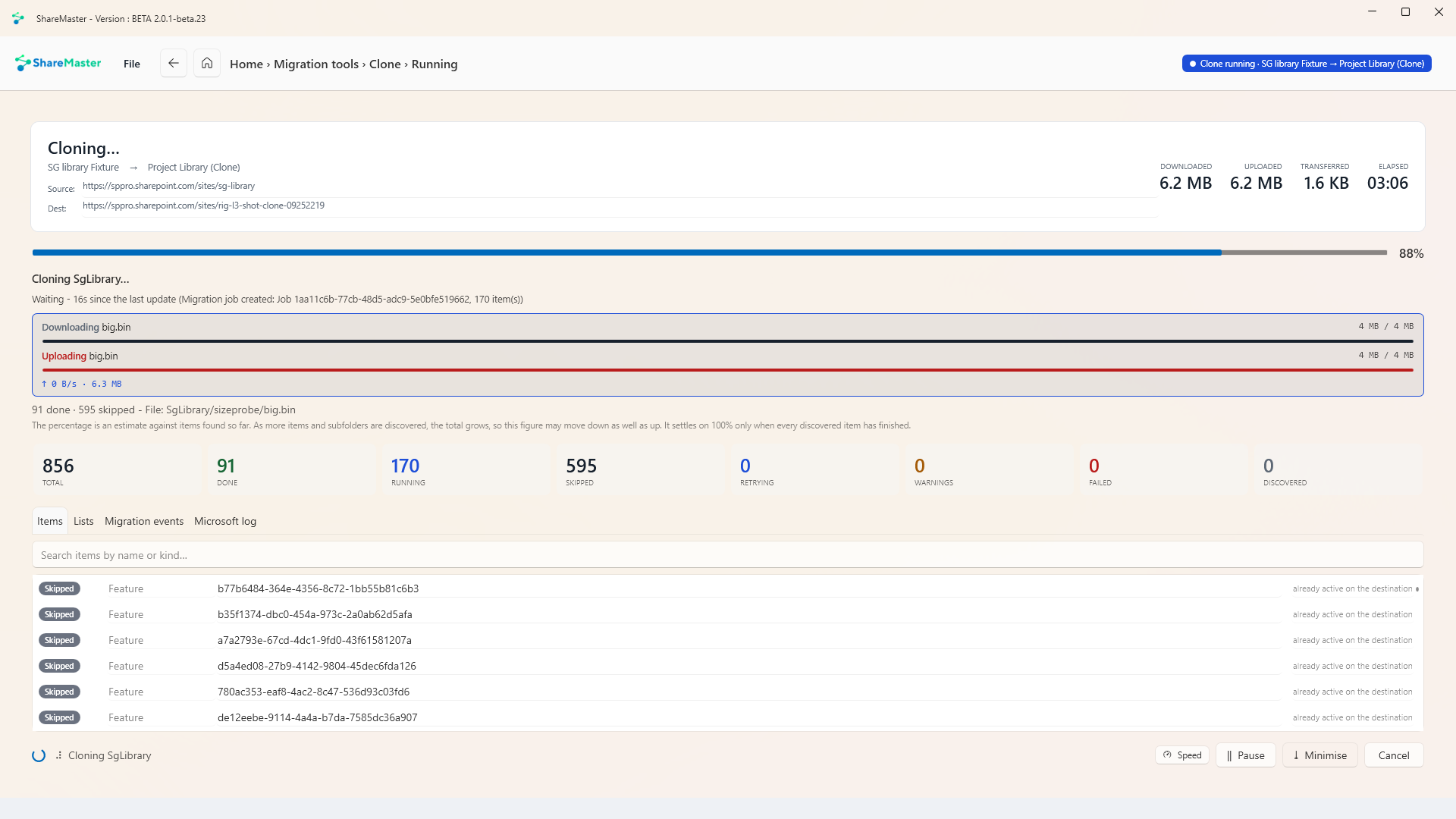
A ShareMaster V2 SharePoint site migration mid-run: bytes downloaded and uploaded, elapsed time, the file in flight with its download and upload bars, and counters for total, done, running, skipped, retrying, warnings, failed and discovered items

A clone three minutes in, moving a 4 MB file. The header counts bytes both ways, the bars show the file in flight, and the status line says what it is waiting on instead of going quiet.

Nothing hidden while it runs

Every item it finds lands in the list below the counters, with its own status and the reason it was skipped or retried. Lists, Migration events and the Microsoft log each have their own tab, so you can watch Microsoft's migration job as well as ours.
It skips what is already there

The 595 skipped items here are things the destination already had, such as site features that were already switched on. Skipped is a count of work avoided, not a failure, and each one says why.

Checked afterwards, not assumed

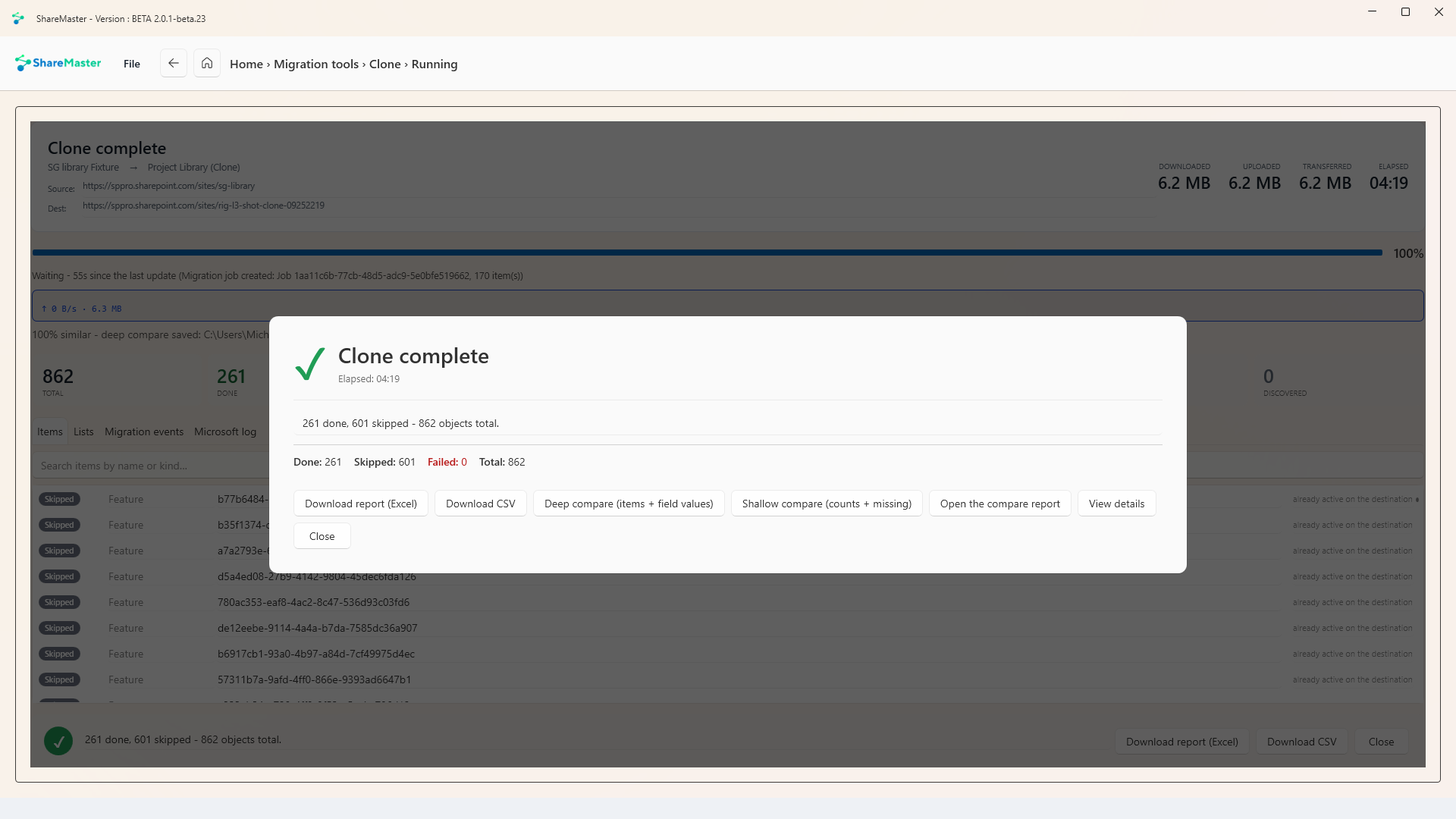
When the run finishes, one click runs a deep compare of every item and field value between source and destination, or a faster shallow compare of counts and missing items. This run came back 100% similar.

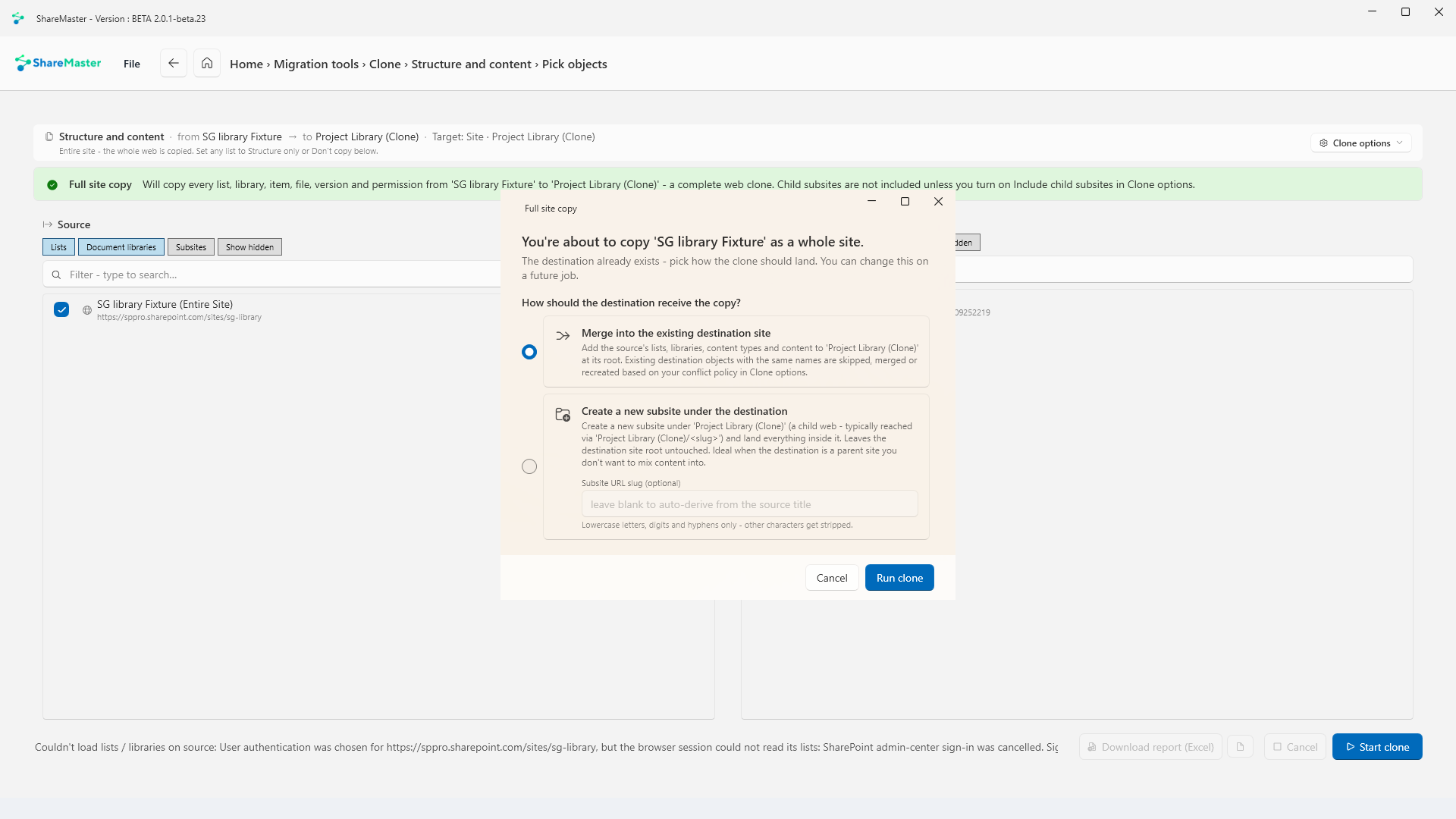
Full site copy options: merge into the existing destination site, or create a new subsite under it with an optional URL slug
Copying a whole site into one that already exists: merge into it, or land as a new subsite.
The clone complete dialog: 261 done, 601 skipped, 0 failed, with buttons for a deep compare, a shallow compare, the Excel report and a CSV
Finished with 0 failed, then deep-compared at 100% similar.
Version History

Trim SharePoint version history

Every save in a versioned library keeps another copy of the file, and every copy counts against your SharePoint storage. Version trimming removes the versions you do not need under rules you set, and shows you exactly what it would remove before it removes anything.

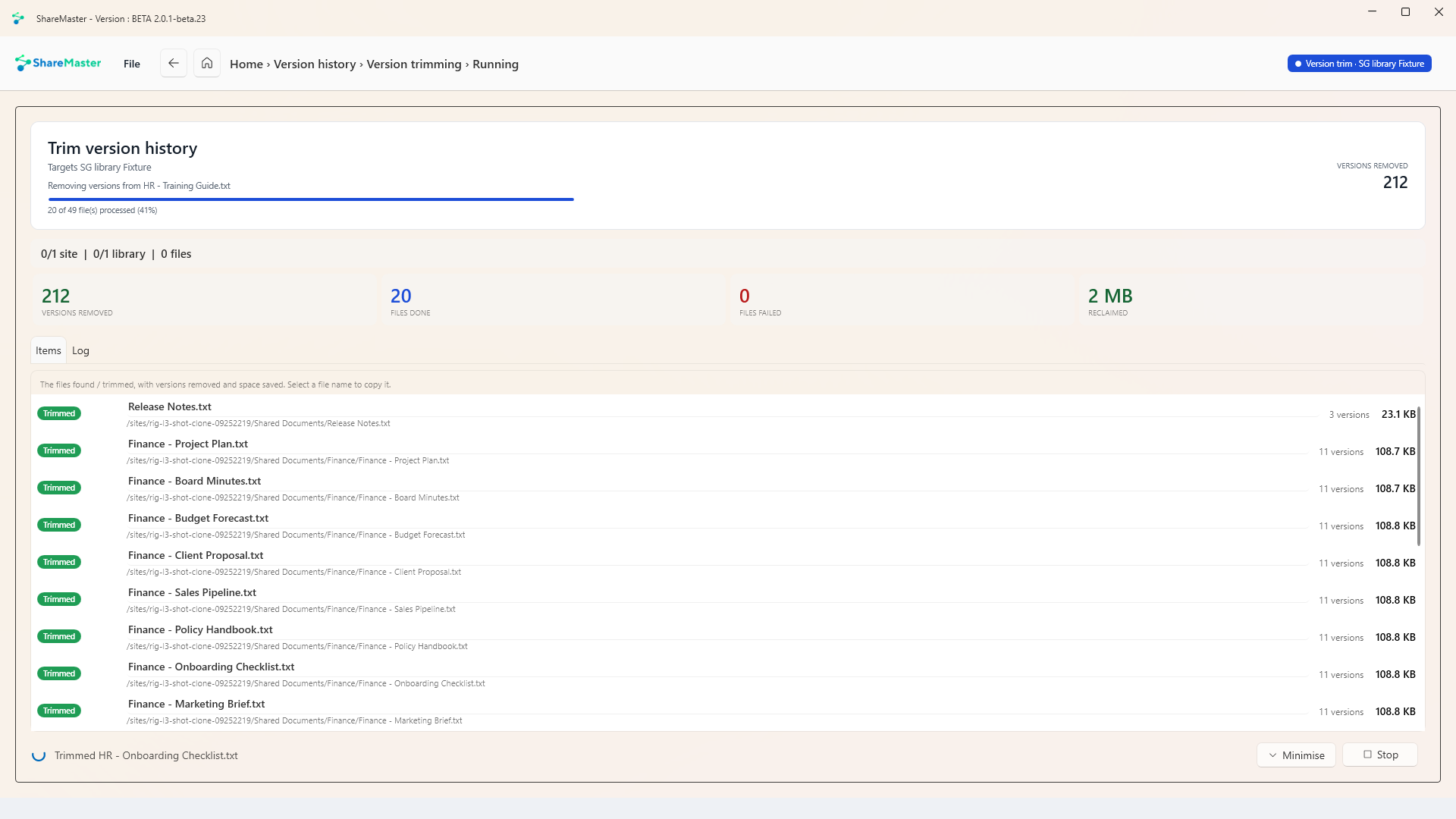
SharePoint version history trimming in progress: 212 versions removed, 20 of 49 files processed, 0 files failed, 2 MB reclaimed so far, and a list of files marked Trimmed with their remaining version counts

Removing versions: 212 gone, 20 of 49 files done, nothing failed. Each file shows how many versions it keeps and how much space it gave back.

Rules, not guesswork

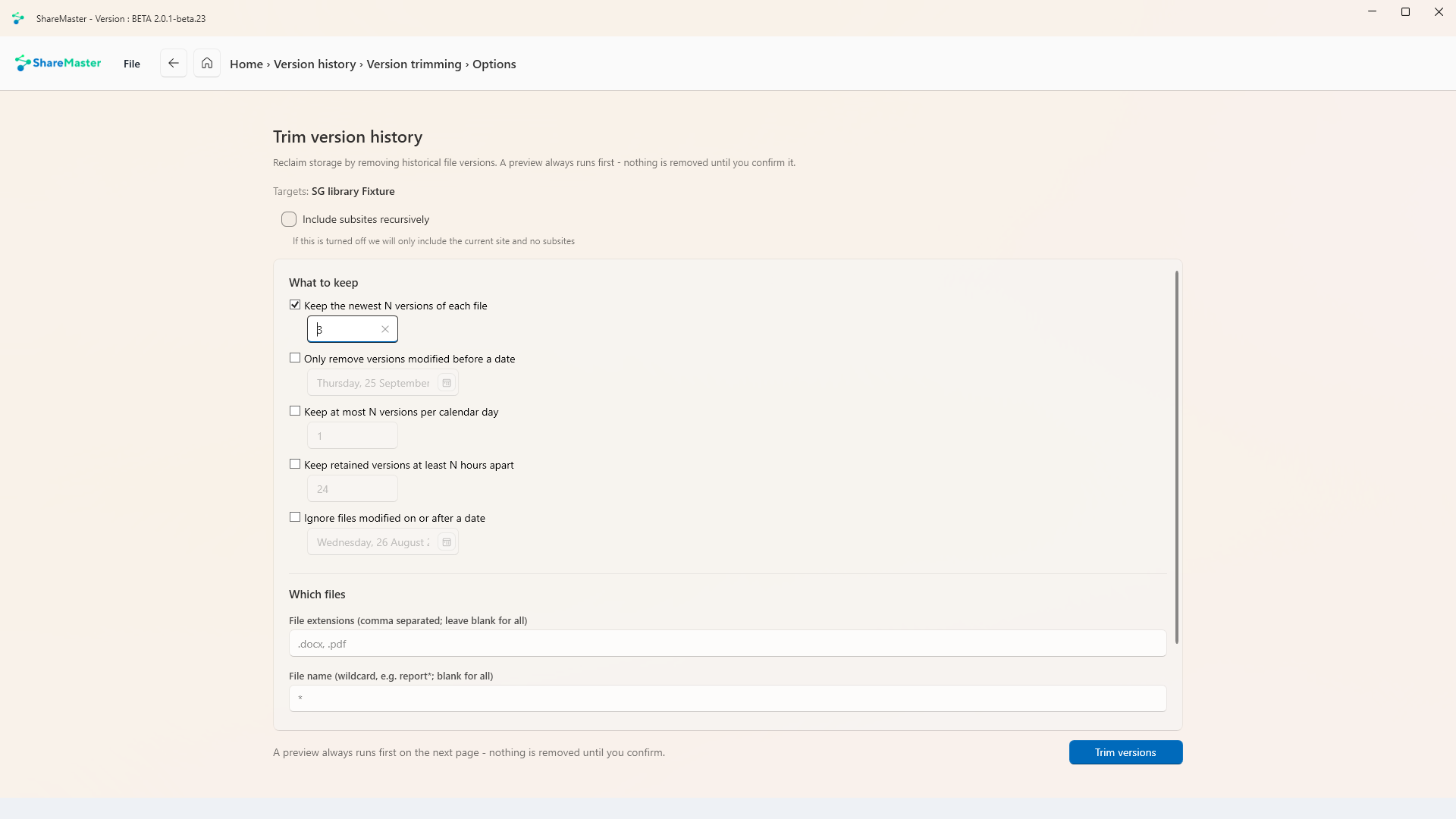
Keep the newest N versions, only remove versions older than a date, keep at most N a day, keep retained versions at least N hours apart, skip recently modified files, and narrow by extension or file name.

A preview first, every time

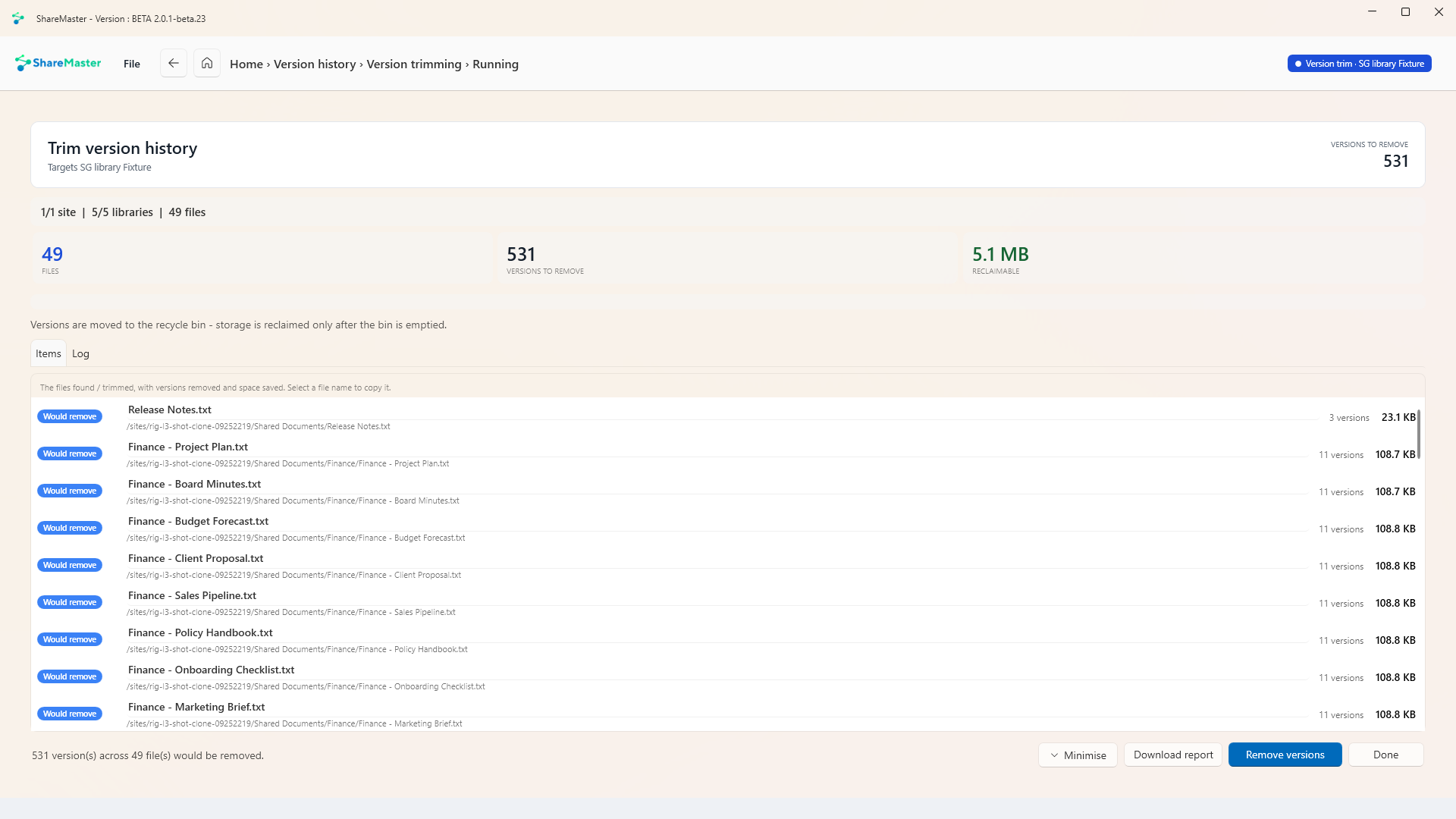
The same scan runs first as a preview that changes nothing: 531 versions across 49 files, about 5.1 MB, listed file by file as "Would remove". Only then does Remove versions become the next step.

The recycle bin is the default

Removed versions go to the site recycle bin unless you tick Permanently delete, so a trim you regret is a restore, not a support ticket. The screen says so too: the space is reclaimed once the bin is emptied. There is also a report-only version of the whole tool for sign-off before anyone trims.

Version trimming settings: keep the newest N versions, delete before a date, maximum versions per day, minimum hours apart, ignore recently modified files, extensions, file name wildcard, publish minor drafts and permanently delete
The trim rules. Permanently delete is off unless you turn it on.
A version trimming preview: 49 files, 531 versions to remove and 5.1 MB reclaimable, each file marked Would remove with its version count and size
The preview: what would go, file by file, before anything does. Storage comes back once the recycle bin is emptied.
Recycling Bin

Search and restore the SharePoint recycle bin

Deleted files stay in the SharePoint recycle bin for 93 days, but the bin itself is a long list with a search box that matches on the item name only. V2 opens a site's first-stage or second-stage recycle bin as a filterable grid, so you can find deleted files and restore them in bulk.

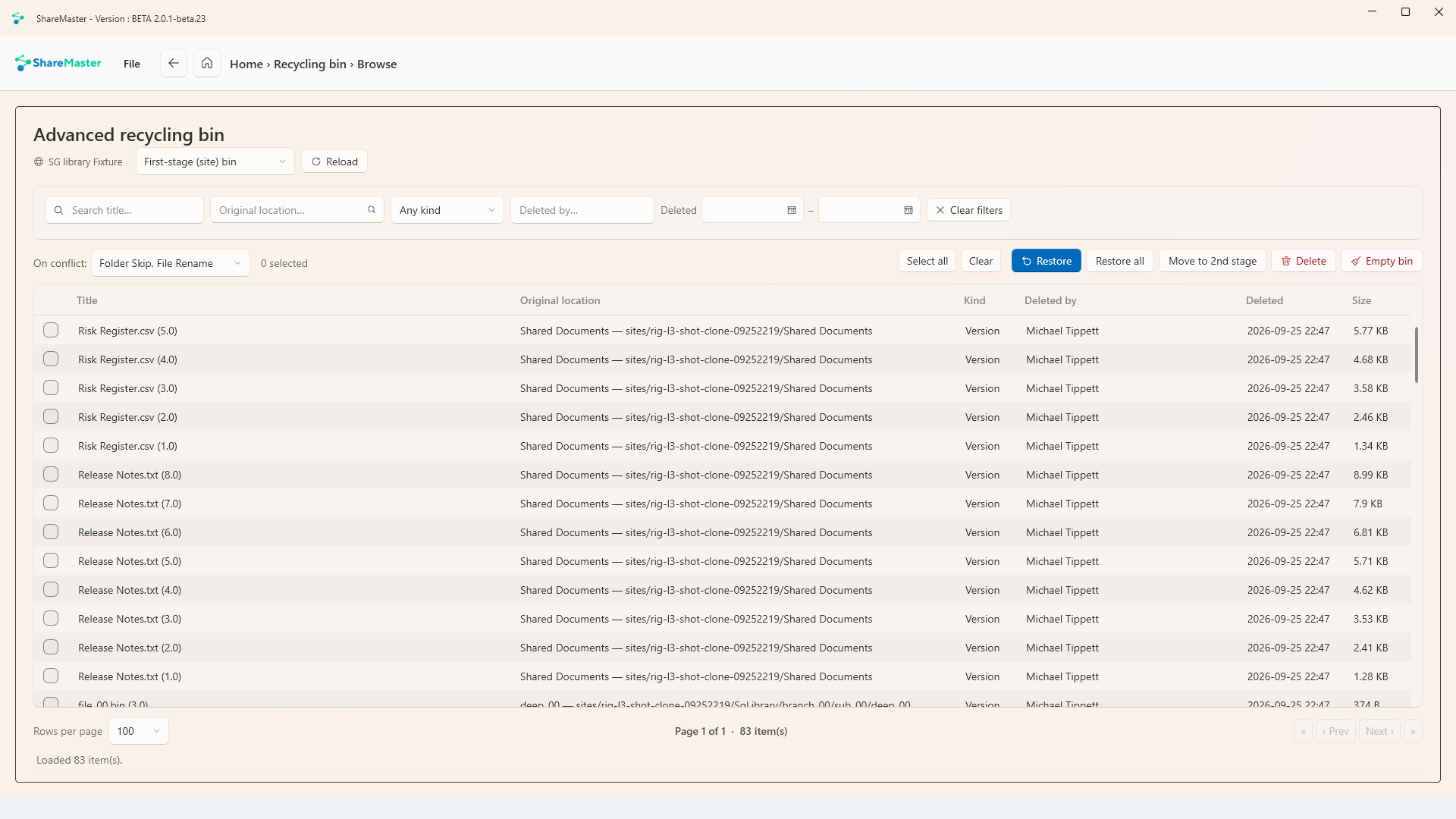
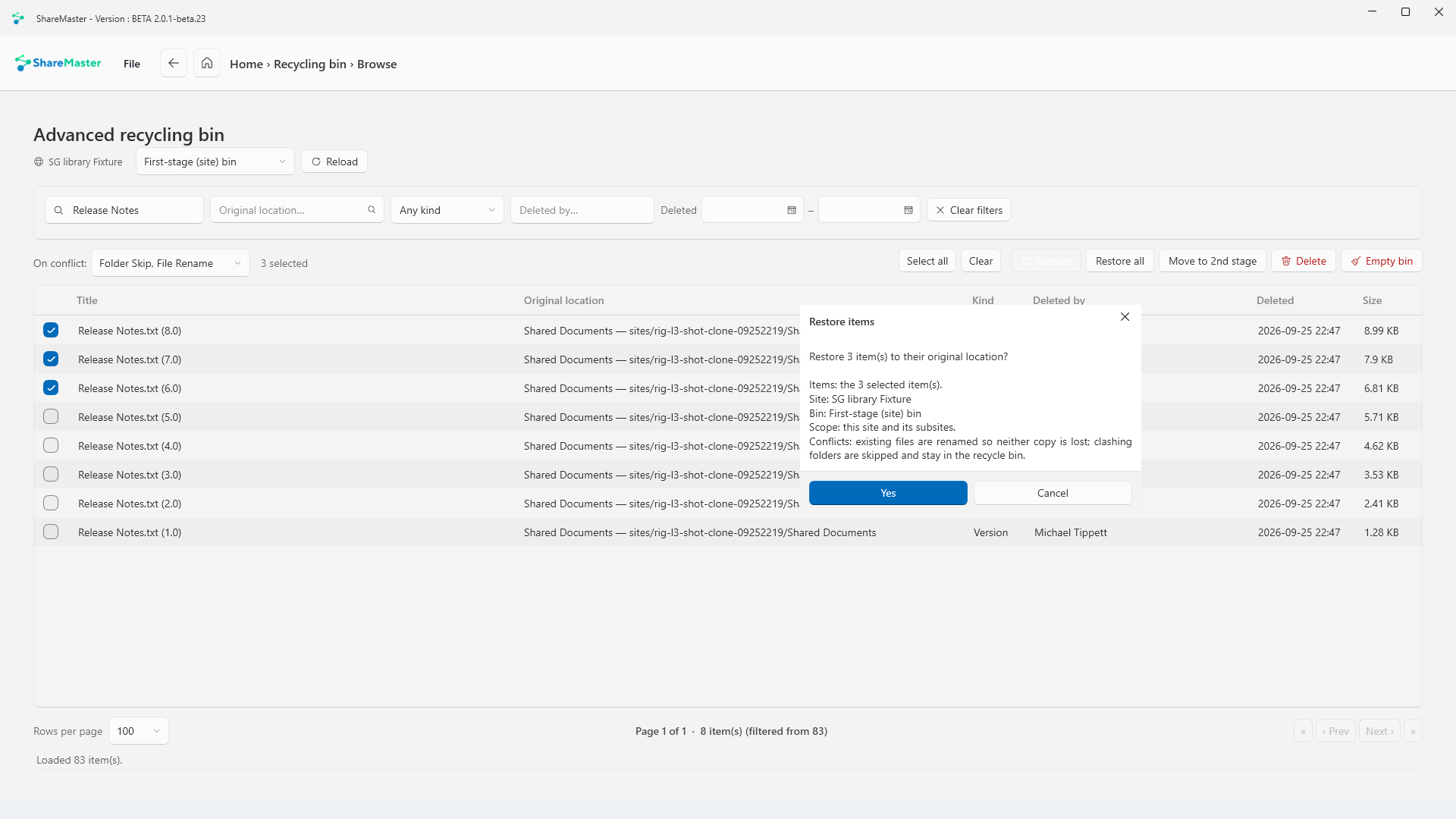
The ShareMaster V2 advanced recycling bin showing 83 deleted versions with title, original location, kind, deleted by, deleted date and size columns, filters, and Restore, Restore all, Move to 2nd stage, Delete and Empty bin actions

83 items in a site's first-stage bin. Filter by title, original location, kind, who deleted it and when, then restore, move or delete what is left.

Find it before you restore it

Filter by title, original location, item kind, the person who deleted it and a deleted-date range, then select the rows you want. Results are paged, 100 rows at a time by default, so a big bin stays quick to work through.

Conflicts decided up front

Choose what happens when a restored item meets something already in its place, such as skipping the folder or renaming the file, before you press Restore. The confirmation spells it out: which items, which site, which bin, and what happens on a clash.

Both stages, one screen

Switch between the first-stage (site) bin and the second-stage bin from the same drop-down, move items to the second stage, or empty a bin when you mean to.

Restore confirmation listing the selected items, the site, the bin, the scope and how conflicts are handled
The restore confirmation says exactly what will happen, including on a conflict.
Reports

SharePoint storage report, site by site

Close to your SharePoint storage limit? Microsoft's Storage Metrics page shows one site at a time. The storage report reads every site you select, finds their subsites, and measures each library and list, so you can see which ones are actually using the space.

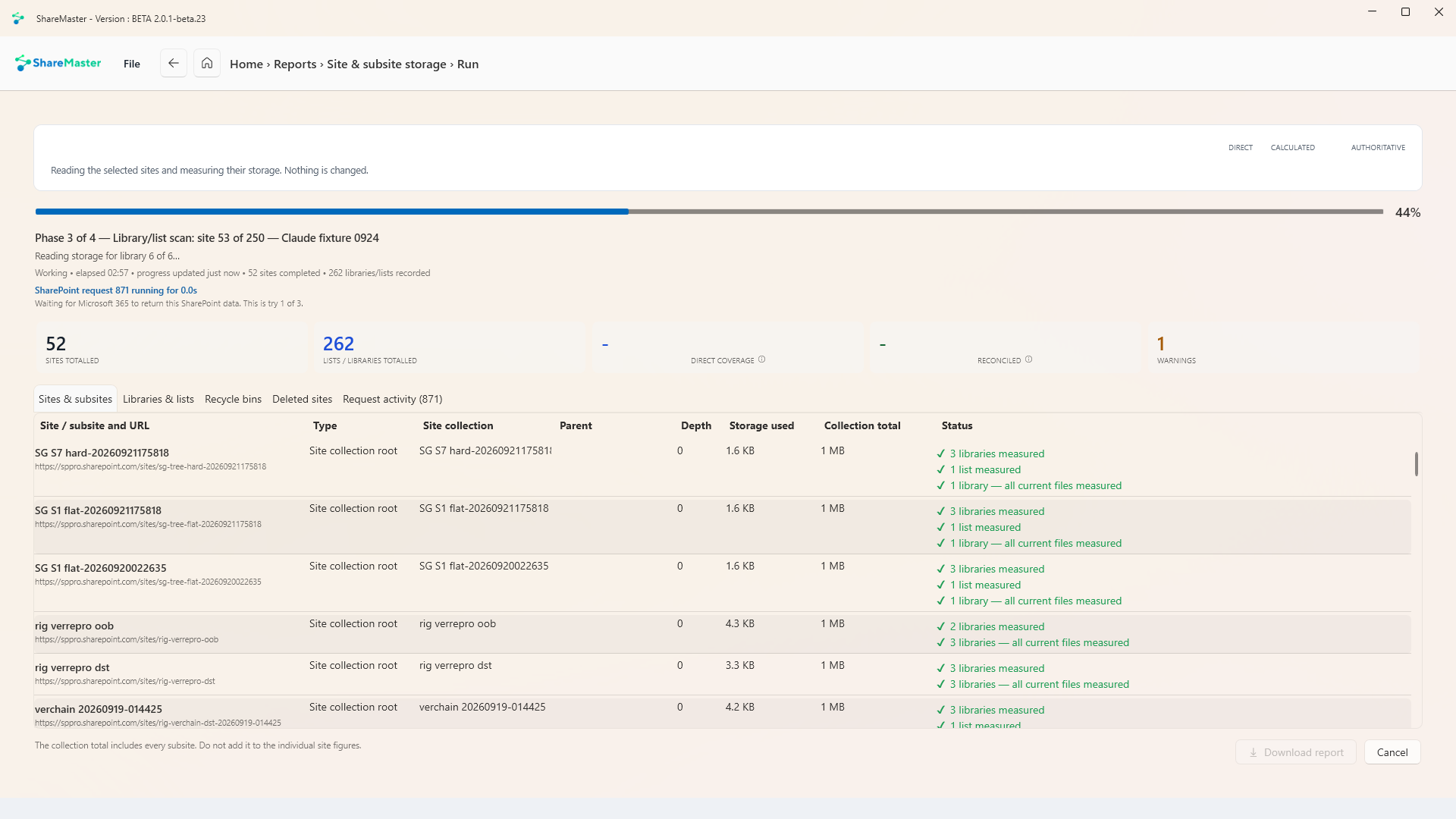
The site and subsite storage report mid-run in phase 3 of 4: 52 sites and 262 libraries and lists totalled, the SharePoint request currently running, and a table of sites with their storage used, collection total and per-library status

Phase 3 of 4, measuring libraries across 250 sites and subsites. Totals fill in as each site completes, and the request in flight is shown with its retry count.

Read-only, and it says so

"Reading the selected sites and measuring their storage. Nothing is changed." The report never writes to your tenant.

Cross-checked totals

It always reads SharePoint's own site-collection total as well as running its detailed scan, and shows the direct, calculated and authoritative figures side by side, so you can see where they disagree. Preservation hold libraries and both recycle bin stages can be counted too, which is often where the "missing" storage turns out to be.

Visible while it works

Separate tabs for sites and subsites, libraries and lists, recycle bins, deleted sites and every request made to Microsoft 365, so a long run never looks stuck when it is not.

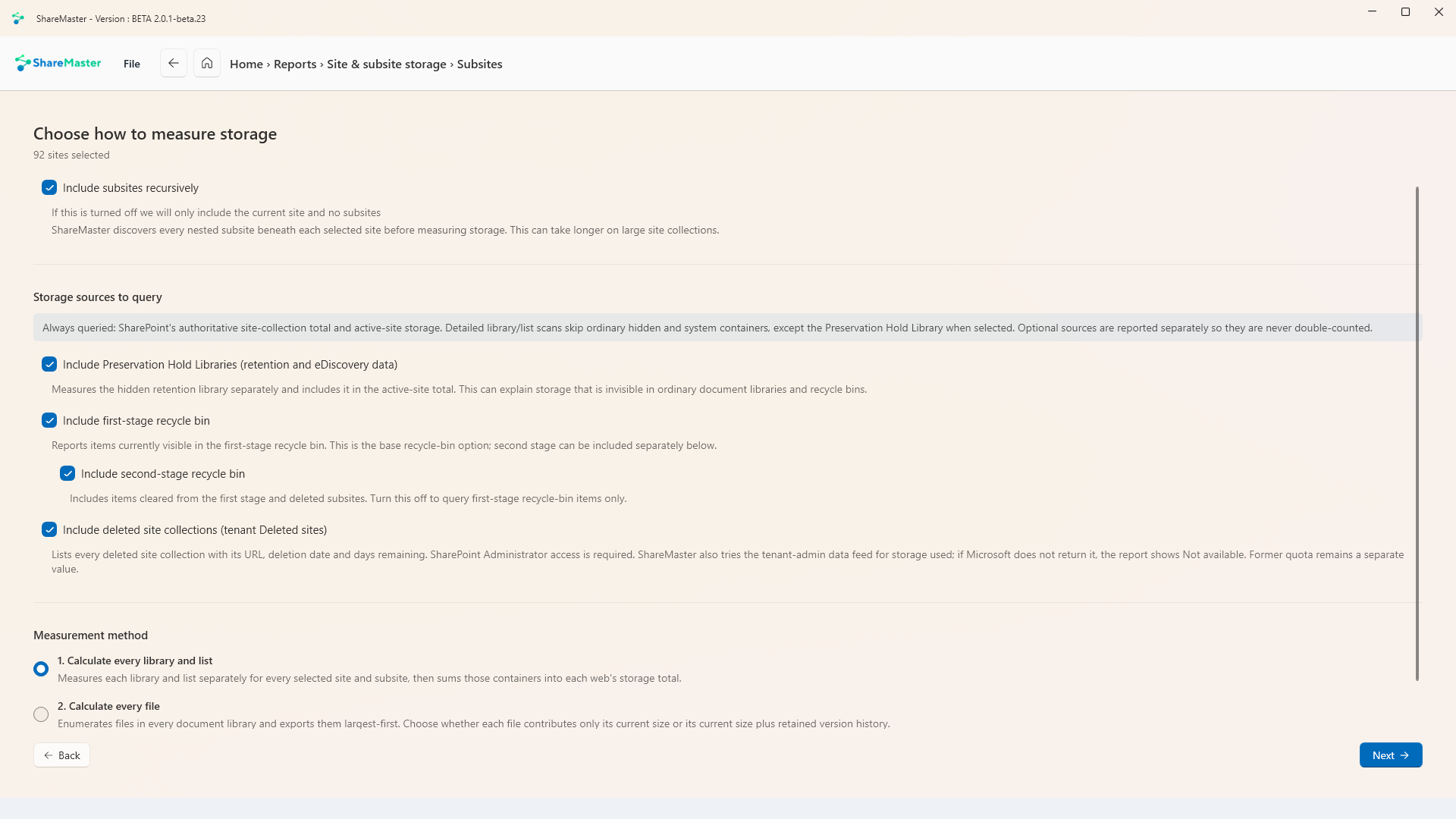
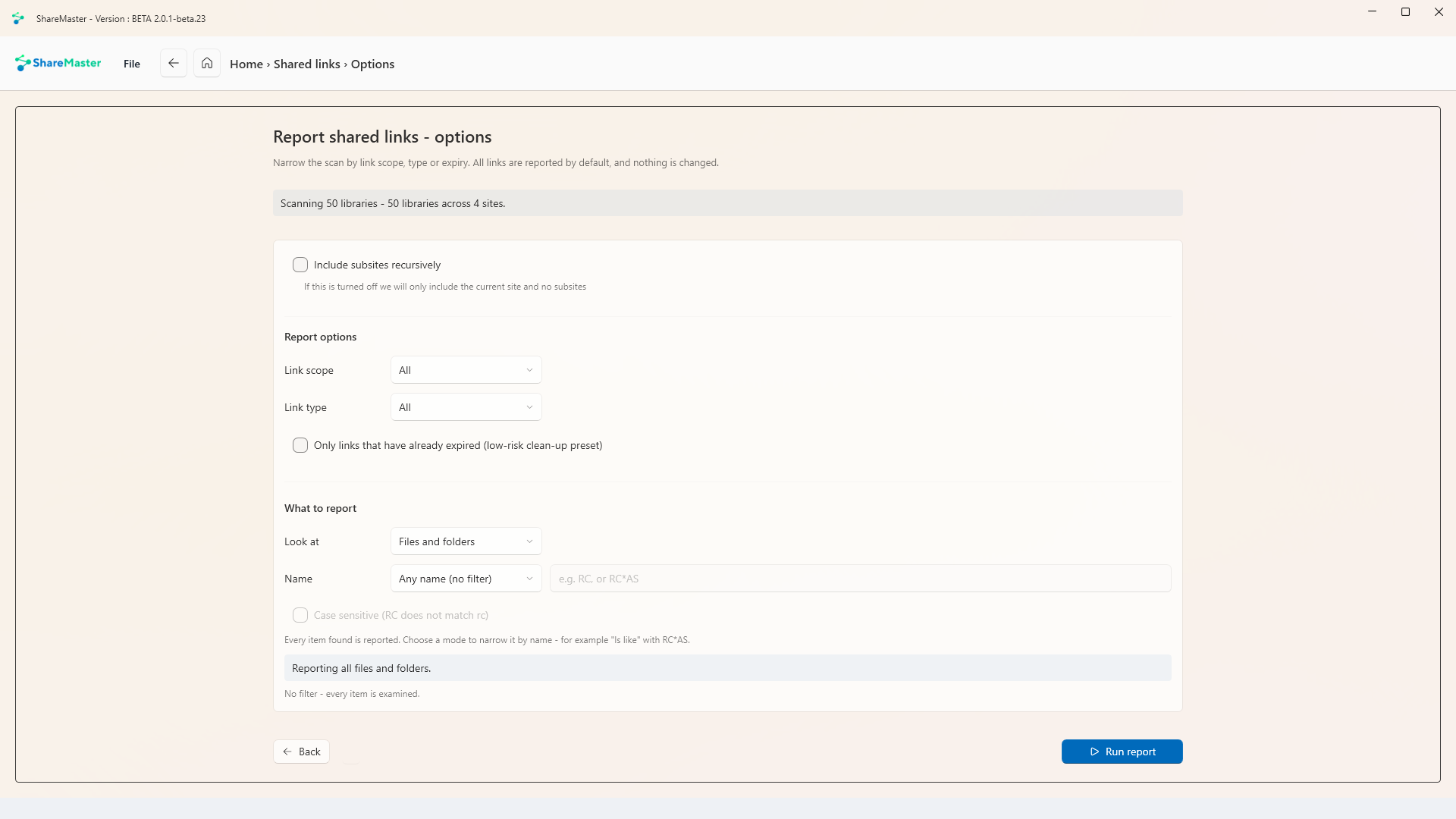
Storage report options: include subsites recursively, and storage sources including Preservation Hold Libraries and the first and second-stage recycle bins
Choose what to count: subsites, preservation hold libraries, recycle bins.
Optimise Storage

Find duplicate files in SharePoint and OneDrive

The same file saved in five places is five times the storage. V2 finds duplicate files across the SharePoint sites and OneDrive accounts you tick, including copies of the same file in different sites.

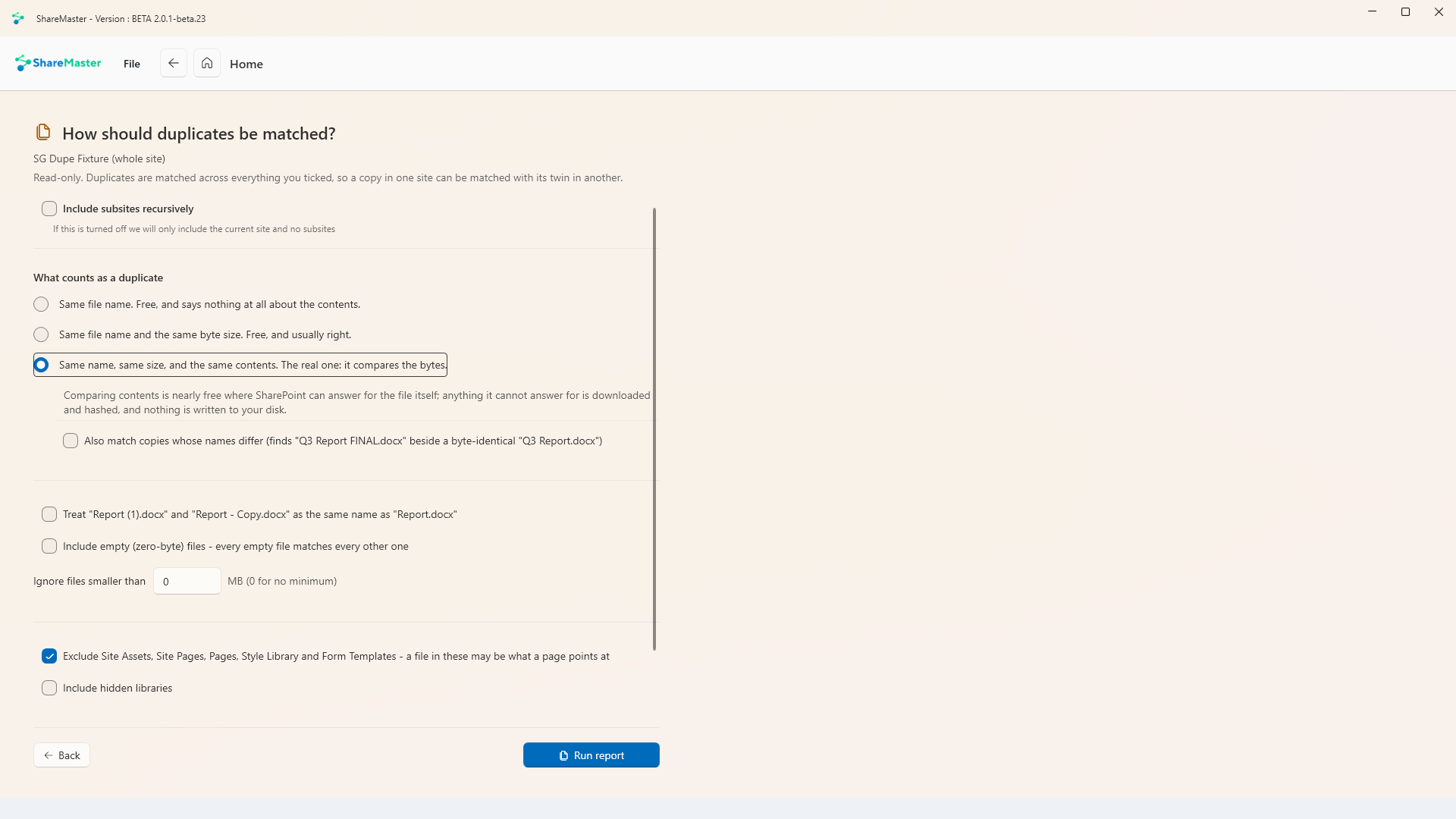
How should duplicates be matched: same file name, same name and size, or same name, size and contents, with options to match copies whose names differ, treat numbered copies as the same name, include empty files and ignore small files

You decide what counts as a duplicate, from a quick name match to a byte-for-byte comparison of the contents.

Honest about the trade-off

Matching by name is free and says nothing about the contents. Name and size is usually right. Name, size and contents compares the actual bytes, using the hash SharePoint already stores for each file.

Catches the renamed copy

Optionally match byte-identical files whose names differ, such as "Q3 Report FINAL.docx" beside "Q3 Report.docx", and treat "Report (1).docx" and "Report - Copy.docx" as the same name.

Two separate stages

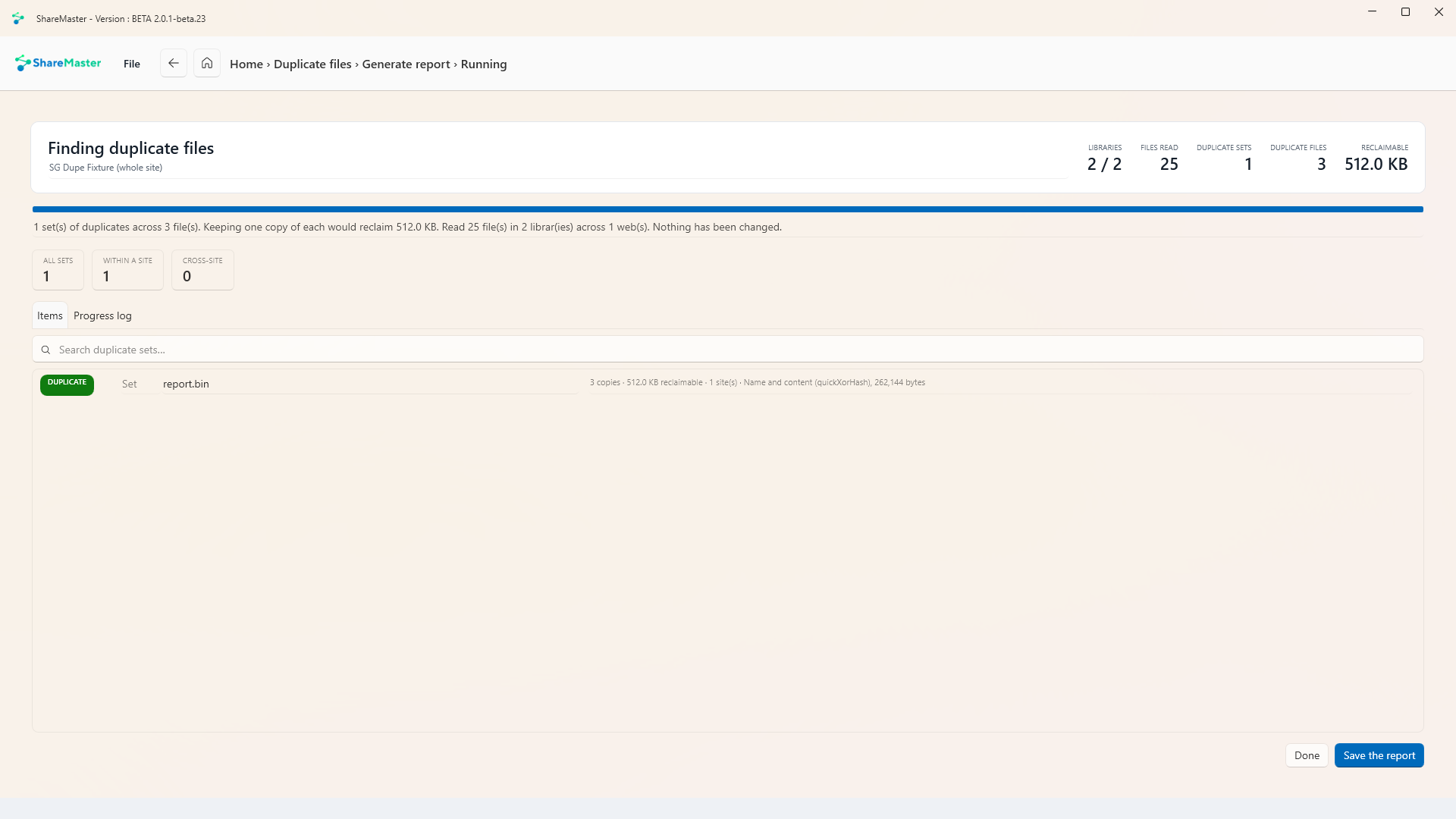
Stage one is a read-only report: the duplicate sets, where they are, and how much keeping one copy of each would reclaim. It saves as Excel plus a CSV you can mark up, and removal is a separate stage that starts from a saved report.

Duplicate file report results: libraries scanned, files read, duplicate sets, duplicate files and reclaimable space, with sets split into within a site and cross-site
The result: duplicate sets, where they sit, and what keeping one copy would reclaim.
Migration

Upload a folder or file share to SharePoint

Move a folder from a PC, or from a file server drive mapped on it, into a SharePoint library or OneDrive, folder structure and all. It is a file server to SharePoint migration without dragging folders into a browser.

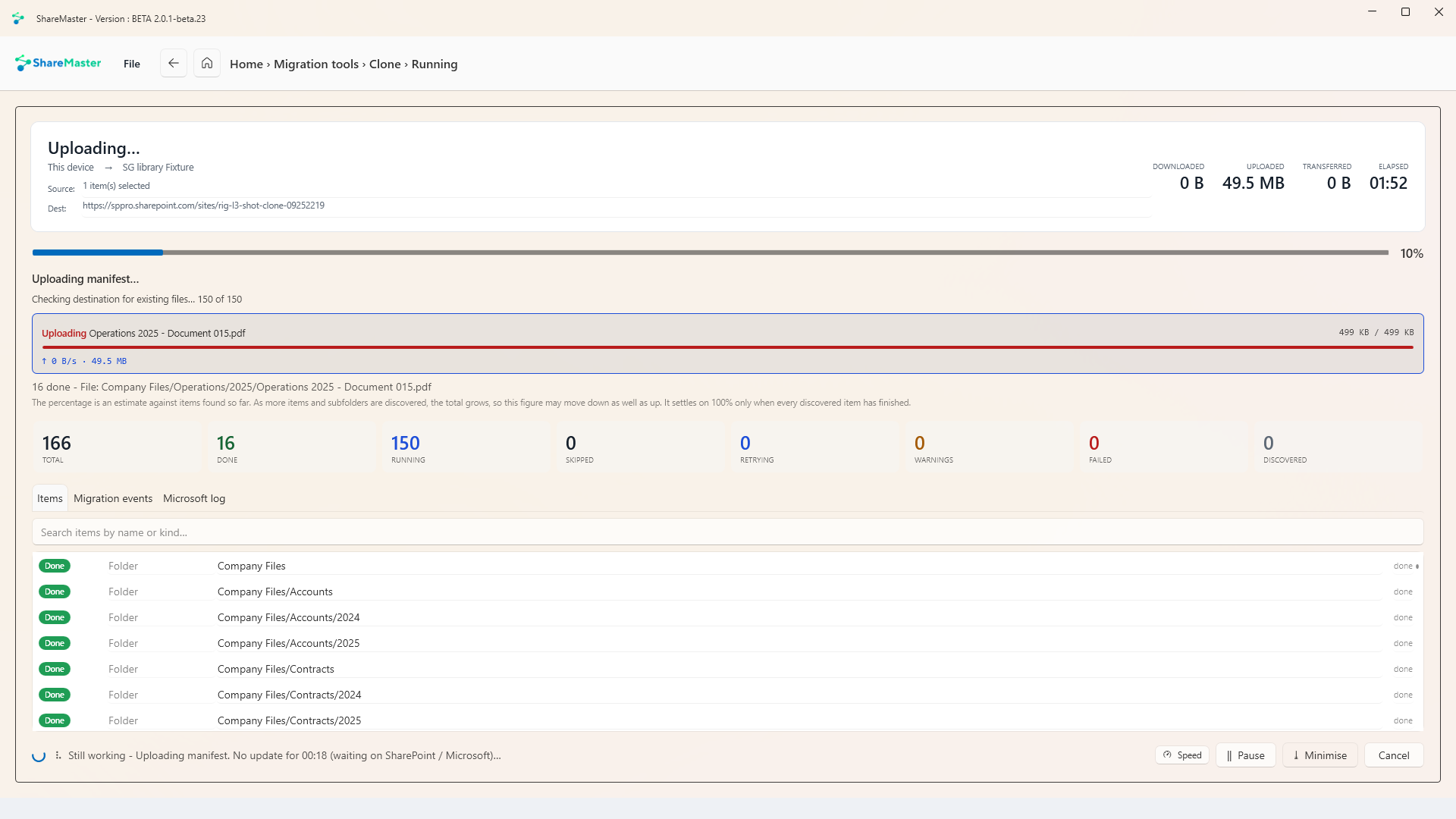
A ShareMaster V2 upload mid-run: 150 files and 49.5 MB from a local Company Files folder, the file being uploaded with its progress bar, counters, and the folder tree being created in the library

150 files and 49.5 MB going up from a local folder. It runs on the same progress screen as a clone: the file in flight, counters, and every folder and file as it lands.

Dates come with it

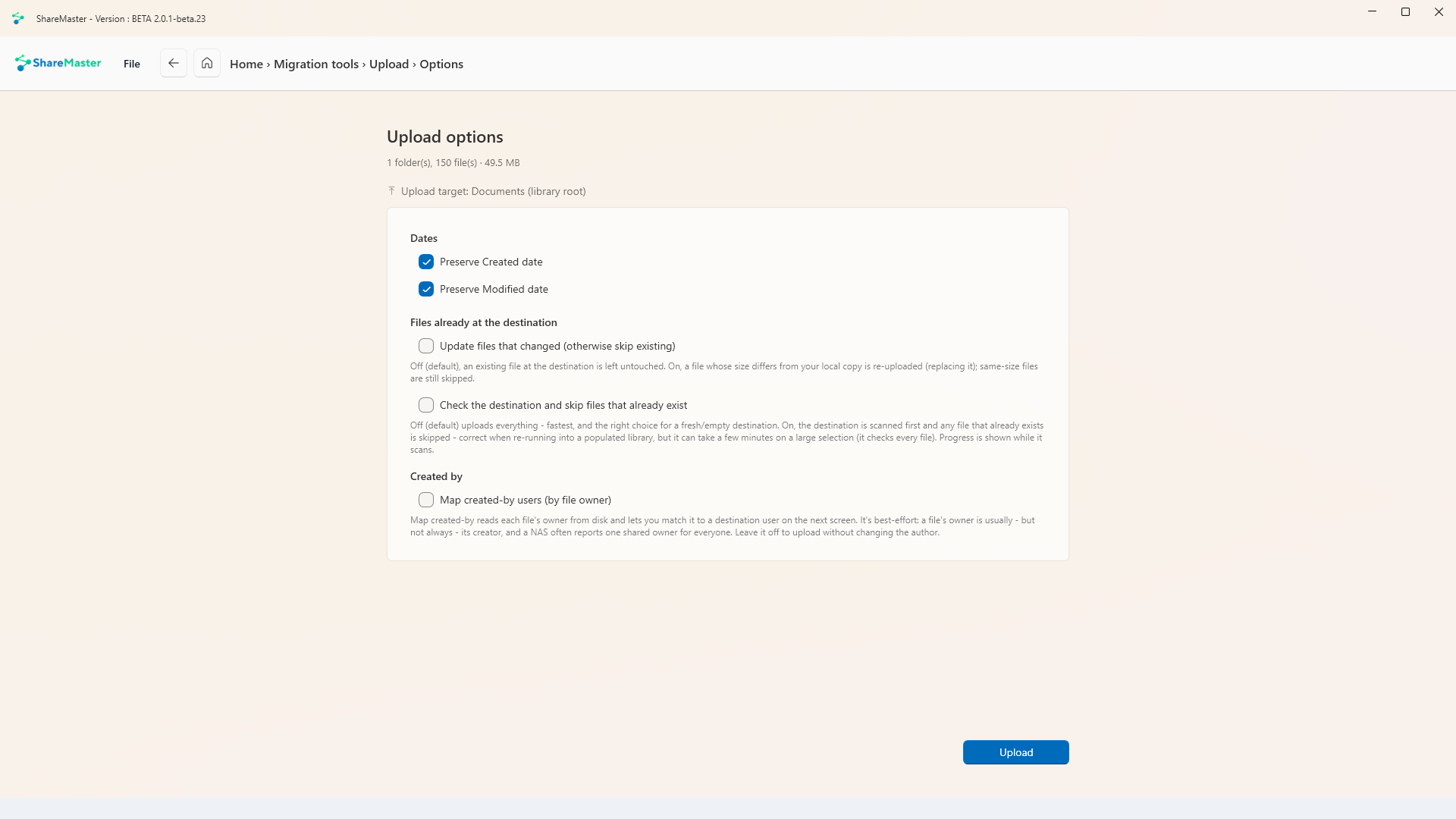
Created and Modified dates are preserved by default, so a library does not look as though every file was written the day you migrated.

Safe to run again

Existing files at the destination are left alone. Turn on the destination check to skip files that are already there, or update the ones whose size has changed, which is what you want when re-running into a library that is already partly filled.

Authors, best effort

Optionally read each file's owner from disk and map it to a person at the destination, so Created By means something. It is best-effort by design: a file's owner is usually, but not always, its author.

Upload options: preserve Created and Modified dates, update changed files, skip files that already exist, and map created-by users by file owner
Upload options: dates, existing files, and created-by mapping.

Run these yourself

The V2 beta is in the members area for anyone with a ShareMaster account, including a free Community account. It installs beside V1, and your existing licence carries across.