
Find your symptom first. Each row is explained further down.
| What you see | Most likely cause | First thing to try |
|---|---|---|
| Progress sits at one figure (often 50%) for hours | A large folder being processed inside one job, or a job that has quietly stopped | Check what has already landed at the destination before touching anything |
| "File size over limit" or "file count over limit" | The selection as a whole is over 100 GB or 30,000 files | Split it into smaller selections |
| Some items fail, the rest arrive | Open or locked files, a name clash, a unique-value column, a retention hold, or a path over 400 characters | Fix the named items, then move only those |
| Everything fails with no clear reason on a busy tenant | Throttling | Retry later with a smaller selection |
| Copy to finished but version history is gone | Expected: Copy to keeps only the latest version | Use Move to if history matters |
If the Move to command is missing altogether rather than failing, that is a different problem: Microsoft notes it is not available in the classic experience or in the Site Pages library. The rest of this page is about jobs that start and then go wrong.
Why a large SharePoint Move to job gets stuck
When you click Move to or Copy to, the browser does not copy anything itself. SharePoint queues an asynchronous copy job on the server and the panel you see reports on it. Microsoft's cross-site copy and move API documentation describes the same mechanism for developers: a job is created, it gets an ID, and the caller polls for its status.
That design is why the percentage is so unhelpful. It reports job status in coarse steps. One folder holding thousands of files can take a long time, and the figure does not change while it does.
It is also why "under the limit" is no guarantee. One user on the Microsoft Tech Community reported a 95 GB, 18,557-file move sitting at 50% with no error, below both published caps. Replies guessed at unpublished limits, but nobody pinned down a cause. A single job that big has many ways to stall, such as one locked file or a throttling pause, and the UI shows none of them.
The limits on one Move to or Copy to operation
These figures come from Microsoft's SharePoint Online limits page, which also notes that limits can vary by tenant. The first two apply to moves and copies across sites.
| Limit | Value | What it catches |
|---|---|---|
| Total size per operation | 100 GB | A whole library or a big project folder in one go |
| Files per operation | 30,000 | Deep trees of small files, even when the total size is modest |
| Cross-geo move or copy | 15 GB per file | Multi-Geo tenants moving large files between regions |
| Full path including file name | 400 characters | Deeply nested folders with long names, often only at the destination |
| Single file | 250 GB | Rarely the problem; this is the upload limit |
The key word in all of this is operation. The caps apply to one selection, submitted once. They say nothing about how much you can move in total. Ten moves of 50 GB each are ten operations, and each one is inside the limit.
Clear the blockers that fail individual files
When a job reports that some items failed, it is usually one of these. Work down the list before retrying.
- Open or locked files. A file someone has open can block the move. The API has a flag to bypass a shared lock; the UI does not expose it, so close the file or wait.
- Name clashes. By default a file that already exists at the destination fails rather than being overwritten. This is the classic trap on a retry.
- Unique-value columns. Microsoft's support article states the move fails if the destination library enforces unique values and the incoming value already exists.
- Missing columns. Columns the destination library lacks are dropped, and managed metadata is not kept. Nothing fails, but data is lost. Build the destination columns first.
- Retention holds. Content in a site's Preservation Hold library cannot be moved, according to Microsoft's Purview retention documentation.
- Path length. A path that fits at the source can break 400 characters at the destination if the target folder is already deep.
How to recover a half-finished move
The instinct is to select everything again and click Move to. Don't. Half the files already exist at the destination, so the retry fails on name clashes, and you end up with a second partial result on top of the first.
- Stop and look. Leave the source alone. During a move, SharePoint keeps each item at the source until it has landed and only then sends the original to the recycle bin, so the source is an accurate list of what is still to do.
- Compare folder by folder. Open the source and destination side by side. Folders that are empty at the source are finished. Folders with content left are not.
- Check the recycle bin at the source. Originals of moved items go there. It confirms which items completed, and it is where to look if something seems to be missing from both ends.
- Move the remainder in pieces. Select one leftover folder at a time, each well under 100 GB and 30,000 files. Smaller jobs finish faster, fail less often and are easier to check.
- Verify. Spot-check file counts and a few files per folder at the destination, including column values if the library has custom columns.
That works for a few folders. For a library with hundreds of them, doing the split, the tracking and the retries by hand is where the time goes, and it is exactly the part a tool should do for you.
How ShareMaster Copy To / Move To handles large jobs
ShareMaster Copy To / Move To uses the same SharePoint copy engine as the built-in commands, driven from a desktop app instead of a browser panel. The difference is in how the work is cut up and tracked:
- It writes a plan first. Every file and folder in the job goes into a CSV plan you can read before anything runs.
- It splits the job into small pieces. A copy runs one job per file. A move runs one job per folder, deepest folder first, so each job carries only that folder's own files. No single job comes near the 100 GB or 30,000-file cap, so the size of the whole library stops mattering.
- A move is staged, then placed. Each folder is first moved into a
__tempstaging folder inside the destination library, then placed into its final location. When everything has landed, the empty staging folder goes to the recycle bin. - It retries and slows down on its own. Failed job submissions are retried with a back-off, and when SharePoint throttles, it waits rather than failing the run.
- It can resume. If the app closes, the machine restarts or the connection drops, resume from the plan. Items already recorded as done are skipped, and items that were in flight are checked against SharePoint first, so nothing is moved twice.
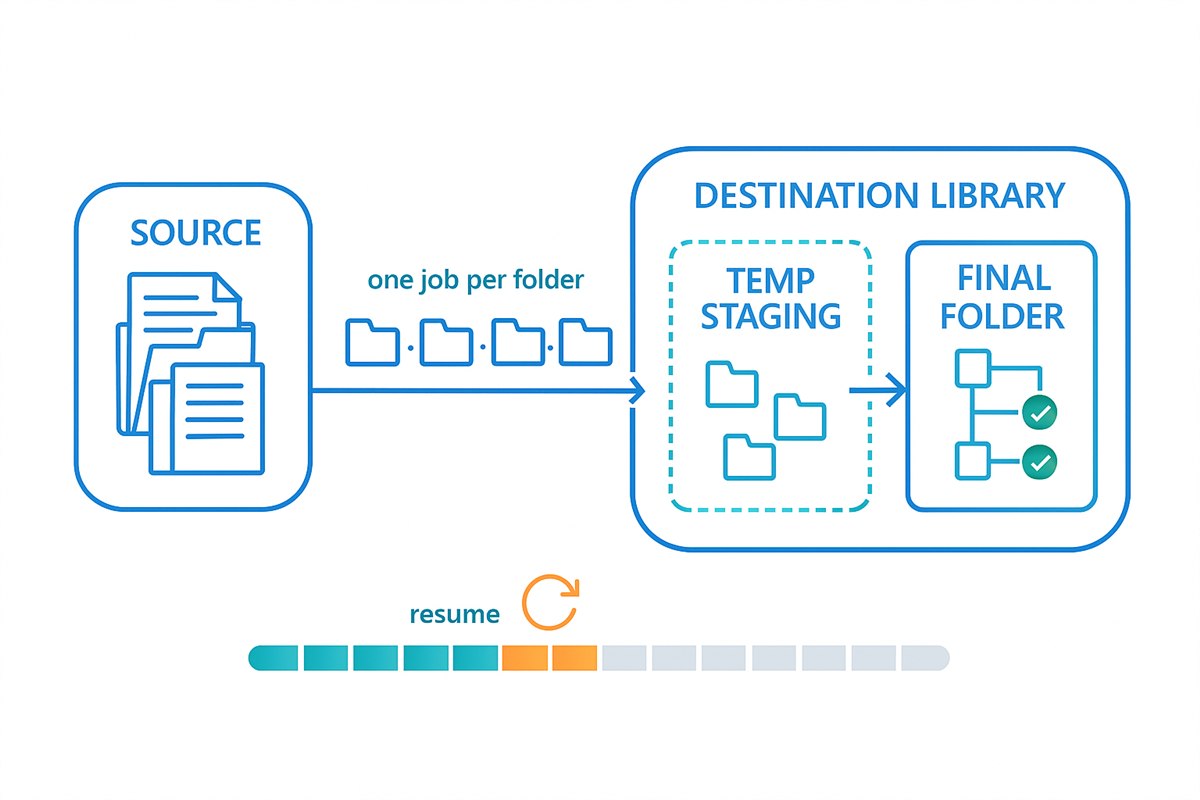
Because every item is its own small job, a stopped run never leaves a file half moved. Each item has either landed, is waiting in staging, or is still at the source, and resuming finishes the rest.
What it does not change. It is still Microsoft's engine, so Microsoft's per-file rules still apply: the 400-character path limit, characters SharePoint does not allow in names, and a single folder with more than 30,000 files directly inside it is still one job. A copy brings the latest version only, exactly like the native Copy to. Unique permissions are not carried across either. For a fuller breakdown of what each operation preserves, see what SharePoint move and copy preserve.
See Copy To / Move To in the feature list
Frequently Asked Questions
Why is my SharePoint Move to stuck at 50%?
The figure is a status reading from a background job, not a byte counter, so it can hold on one number while a large folder is processed. If it truly never moves, check the size of the selection, look for open files and name clashes, and consider throttling. Look at what has arrived before you retry anything.
What does "file size over limit" mean when moving files?
Almost always that the selection as a whole is over 100 GB or 30,000 files for one operation. A single file can be up to 250 GB. Split the move into smaller selections and it will go through.
Does Copy to keep version history?
No. Move to keeps it; Copy to brings the latest version only. Any tool built on SharePoint's copy engine behaves the same way on a copy.
Is it safe to run Move to again after it failed part way?
Only on what is left. The files that already moved will clash with themselves at the destination, and by default a clash fails the item. Use the source as your to-do list and move just that.
Moving between sites for the first time rather than cleaning up after a failure? Start with how to move files between SharePoint sites, or compare the options in four ways to move files between sites. Scripting your own batches instead? The bulk operation batch limits reference lists the caps per method.