
For close to two decades, someone editing a spreadsheet in a library you followed meant an email in your inbox. Microsoft retired those classic SharePoint alerts in July 2026: new alerts could no longer be created in any tenant from January 2026, and the remaining ones stopped working when the feature was removed. If your teams leaned on the little bell icon to know when a contract changed or a shared list got a new row, that workflow now needs a new home in Power Automate or a SharePoint rule.
Why the Gaps Are Hard to Spot
Classic SharePoint alerts were configured per user, per list, and often on an individual employee's own initiative rather than through any central admin process. That decentralisation is exactly what makes the retirement disruptive: there was no single admin console listing every alert in the tenant, and nobody knew how many people were quietly relying on one until it stopped arriving. The result is a trickle of small workflow breakages, each one reported individually to the helpdesk with no context, often weeks after the alert went silent.
Replacing them deliberately, list by list, closes those gaps. It also produces something classic alerts never had: a documented, centrally visible replacement that an admin can audit, modify, and hand off, rather than a personal setting buried in one user's list view.
For background on the retirement itself, see the SharePoint alerts retirement announcement. Power Automate's expanded role in SharePoint workflows is covered separately in the Power Automate integrated workflow update.
How Does Power Automate Replace a Classic Alert?
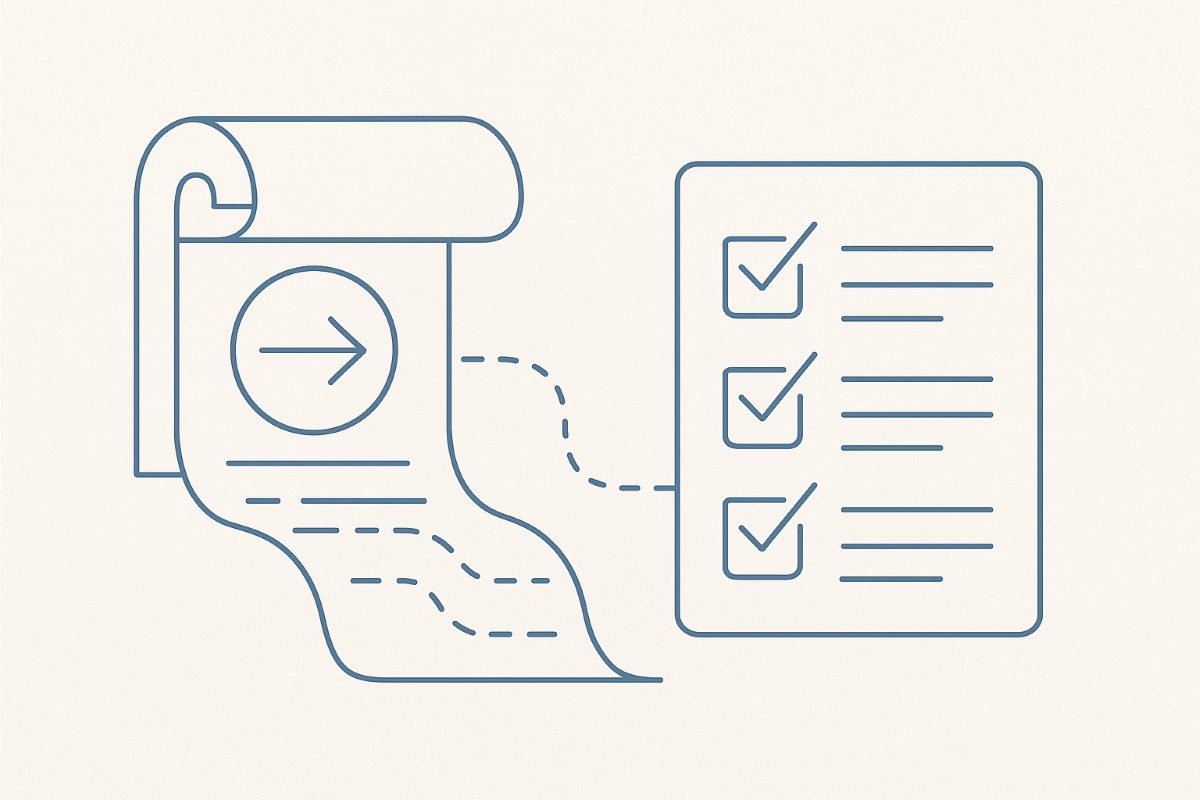
A classic alert and a cloud flow accomplish the same outcome through different mechanics. An alert was a passive subscription: SharePoint watched for a matching change and emailed the subscriber automatically, with no visible configuration beyond the alert dialog itself. A Power Automate flow is an explicit, editable object: a trigger fires when a matching event occurs, then one or more actions run in sequence, typically ending in an email or a Teams notification.
- The flow's trigger (for example, "When an item is created or modified") replaces the alert's event type.
- A filter condition inside the flow replaces any alert scoping, such as "only items where I am the person responsible."
- An email or Teams action replaces the alert's notification delivery, with far more control over formatting and recipients than the original alert offered.
Step 1: Inventory the Alerts People Relied On
Because alerts were self-service, the first job is discovery rather than migration. If anyone exported the tenant's alerts before the July 2026 removal, for example with PnP PowerShell, start from that list. Otherwise ask list and library owners, and the users of high-value lists, which alert emails they used to receive and have stopped getting. Record the trigger type (item added, item changed, item deleted) and the frequency (immediate, daily digest, weekly digest) for each one found.
What to Record for Each Alert
| Field | Why it matters for the flow |
|---|---|
| List or library | Determines the SharePoint connector's site and list parameters |
| Trigger event | Maps directly to the flow's trigger type |
| Frequency | Immediate maps to a standard trigger; digests need a scheduled flow instead |
| Recipient | Becomes the "To" field on the flow's notification action |
Step 2: Map Alert Criteria to a Power Automate Trigger
Open Power Automate and start from the SharePoint connector's standard triggers: "When an item is created," "When an item is created or modified," and "When an item is deleted" cover the vast majority of classic alert scenarios. For an alert scoped to changes made by a specific person or to a specific view, add a condition action immediately after the trigger that checks the relevant field before continuing to the notification step.
Digest-style alerts need a different shape entirely. Instead of a per-event trigger, build a scheduled flow (for example, running once daily at 7am) that queries the list for items modified since the last run and compiles the results into a single summary email. This is more setup than an immediate-trigger flow, but it is a one-time cost per digest-style alert being replaced.
Step 3: Build and Test the Replacement Flow
Build the flow end to end: trigger, any filter conditions, and the notification action. Test it against real changes in the target list before telling anyone the migration is complete. Confirm the notification content includes enough context (item title, a direct link, and what changed) to be at least as useful as the original alert email, since a vague generic notification is a common reason users complain a "replacement" feels worse than what it replaced.
Read why these retirements tend to compound if this is not the first Microsoft automation feature your tenant has had to migrate off in recent years.
Step 4: Confirm With the People Who Relied on the Alert
The old alert is no longer there to compare against, so the people who used to receive it are your test. Ask them to watch the new notifications for one to two weeks after the flow goes live and to report anything missing, late, or unclear. Send a short note explaining that notifications now come from a Power Automate flow rather than the built-in alert system, including who to contact if the format needs adjusting, and record each flow with an owner so it does not become another undocumented personal setting.
For lists that had a large number of individually configured personal alerts, tackle the replacement list by list rather than trying to convert the entire tenant at once. A phased rollout, prioritised by business criticality, keeps the scope of each week's work manageable and gives you a track record to point to if a department pushes back on the change.
Frequently Asked Questions
Do classic SharePoint alerts still work?
No. Microsoft turned off the creation of new alerts for all tenants from January 2026 and removed the ability to use SharePoint alerts in July 2026, with no option to extend them. Any notification people relied on now needs a Power Automate flow or a SharePoint rule instead.
Can Power Automate replicate immediate, daily, and weekly alert digests?
Immediate alerts map directly to a standard triggered flow. Daily and weekly digests require a scheduled flow that queries changes since the last run and compiles them into one notification, since Power Automate does not batch trigger events the way classic digest alerts did.
Does Power Automate cost extra on top of a Microsoft 365 licence?
Standard SharePoint, Outlook, and Teams connector usage in a typical notification flow is covered by the Power Automate use rights included with most Microsoft 365 plans. Premium connectors and dedicated per-flow plans are only relevant for more advanced automation outside basic notifications.