Sign in to Dropbox
Read-only access, approved on Dropbox's own consent screen. Nothing to register, no client secret to store, and no permission that could write to or delete from Dropbox.

Bring a Dropbox account, or an entire Dropbox team, into SharePoint libraries through Microsoft's own Migration API. Folder structure and modified dates come across, Paper documents are converted and reported rather than quietly changed, and a run that stops partway can be picked up where it left off.
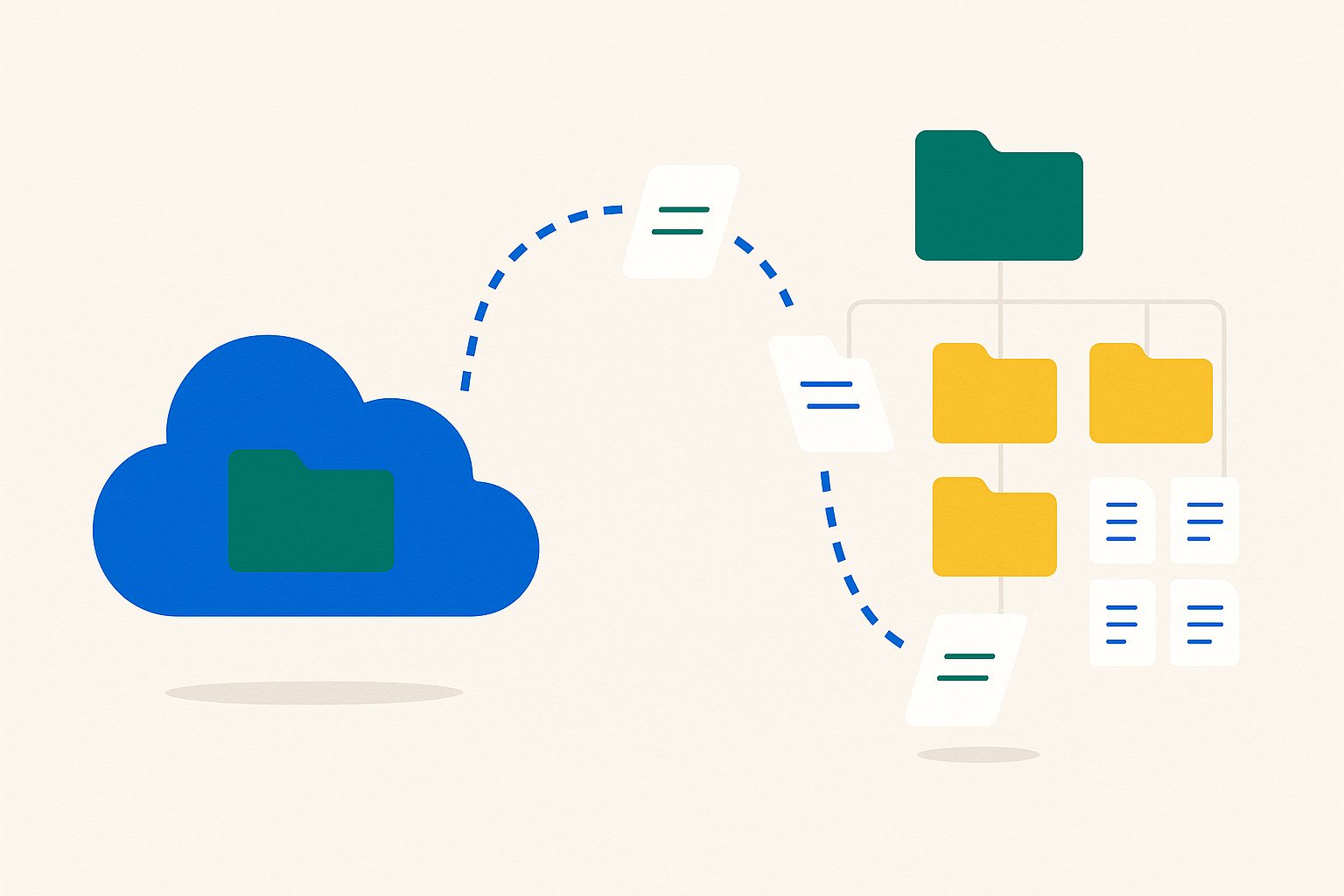
Where this is up to. Dropbox to SharePoint is in the ShareMaster V2 beta, which you download from the members area with any ShareMaster account. It needs a Clone Master licence or a trial to run.
No PowerShell, no staging file share, and nothing to install on the Dropbox side. It runs on your Windows machine and talks to both services directly.
Read-only access, approved on Dropbox's own consent screen. Nothing to register, no client secret to store, and no permission that could write to or delete from Dropbox.
A personal home folder, a team folder, the whole team space, or a member's home folder. Then tick the exact folders and files you want if you do not want all of it.
A SharePoint site, a library and a folder inside it. The Dropbox folder structure is rebuilt underneath, and folders that already exist are reused rather than duplicated.
Which Dropbox timestamp becomes Modified, what happens to files already in the destination, and what to do with Paper documents. Then it runs, with live per-file progress and a report at the end.
Dropbox and SharePoint do not hold the same information about a file, so some things cannot survive the trip no matter which tool you use. Here is the honest list.
Do the bulk of the copy while people are still working, then run a second pass that picks up source changes with Incremental. Differential checks both sides by filename and relative path and copies only missing files, leaving existing paths alone.
Dropbox throttles and so does Microsoft 365. Both are treated as a pause rather than an error, and anything whose bytes still did not arrive is retried in a sweep at the end of the run instead of being left for you to find in a log.
Every run records the exact selection it used, so a cancelled or failed one is resumed from the history list. Files already in the destination are skipped rather than copied a second time.
Dropbox keeps two timestamps: the one the uploading client claimed, and the one Dropbox observed. The first usually holds the real authoring date, the second is always true. Neither is right for everybody, so it is your call and it is stated on screen.
Existing destination files are skipped by default. If you do want them replaced, you can still protect anything a person has edited in SharePoint since the last pass.
A comparison report checks what is in Dropbox against what landed in the library, by filename and relative path. The same report is available from History and Reports, listing missing files and destination files outside the compared Dropbox scope.
File sizes may change slightly when SharePoint updates embedded document metadata. Sizes are therefore excluded from comparison and Differential copy decisions. A size difference alone does not establish corruption; this report checks presence and does not verify file contents.
14-day free trial. No credit card. It runs on your machine, and your content never passes through us.